Tasks (Care Tasks) shows care tasks in three columns: Pending, In progress and Done or cancelled. The number in brackets is how many tasks are in each.
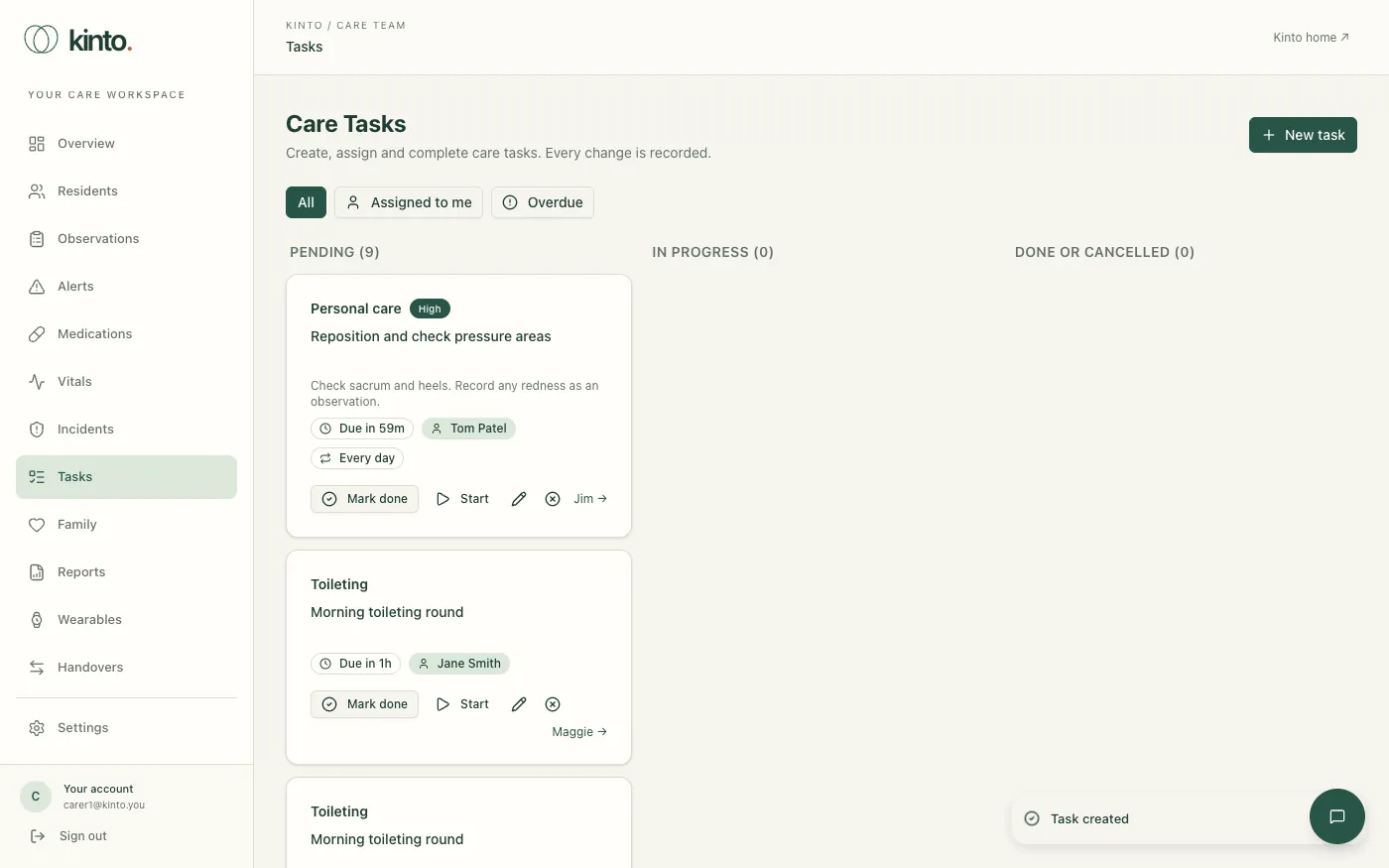
Create a task
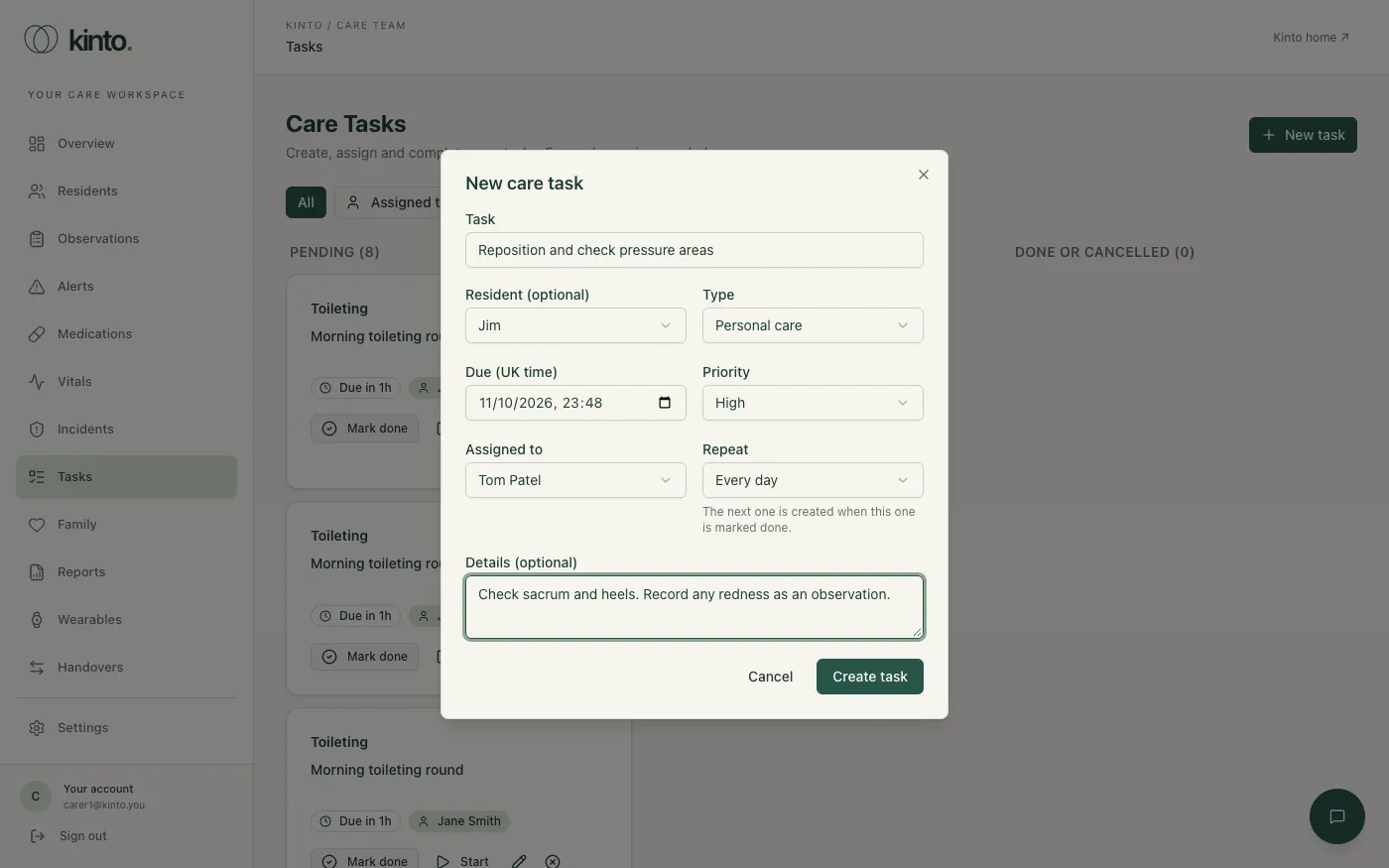
- Select New task.
- Describe the Task, for example
Reposition and check pressure areas. - Choose the resident, or Not for one resident for a task for the whole home.
- Choose the type, when it’s Due, the Priority (Low, Normal, High or Urgent) and who it’s Assigned to. Only the care team (owners, admins and carers) can be assigned.
- Choose Repeat if it happens Every day or Every week. The next one is created when this one is marked done.
- Select Create task.
Reading a task card
- The kind of task and, if it isn’t normal, its priority.
- The task and any details.
- When it’s due, for example Due in 1h or Due 3h ago, who it’s assigned to, and whether it repeats.
- The resident (select their name to open their profile), or Whole home.
Work through a task
- Start moves it to In progress.
- Mark done moves it to Done or cancelled with your name and the time.
- The pencil edits the task or reassigns it to someone else.
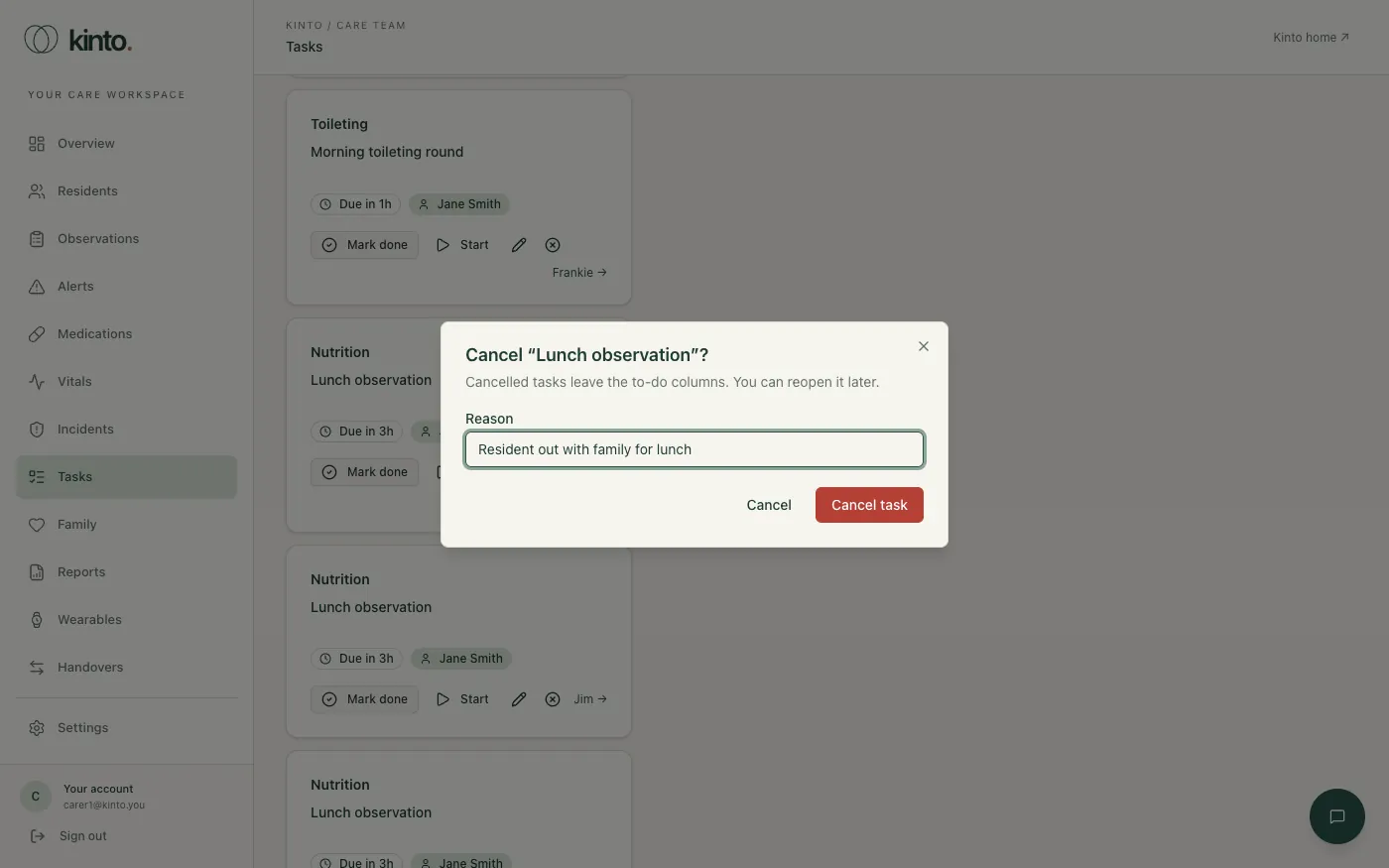
- The cross cancels it: give a reason, for example
Resident in hospital. - Reopen on a done or cancelled task puts it back in Pending.
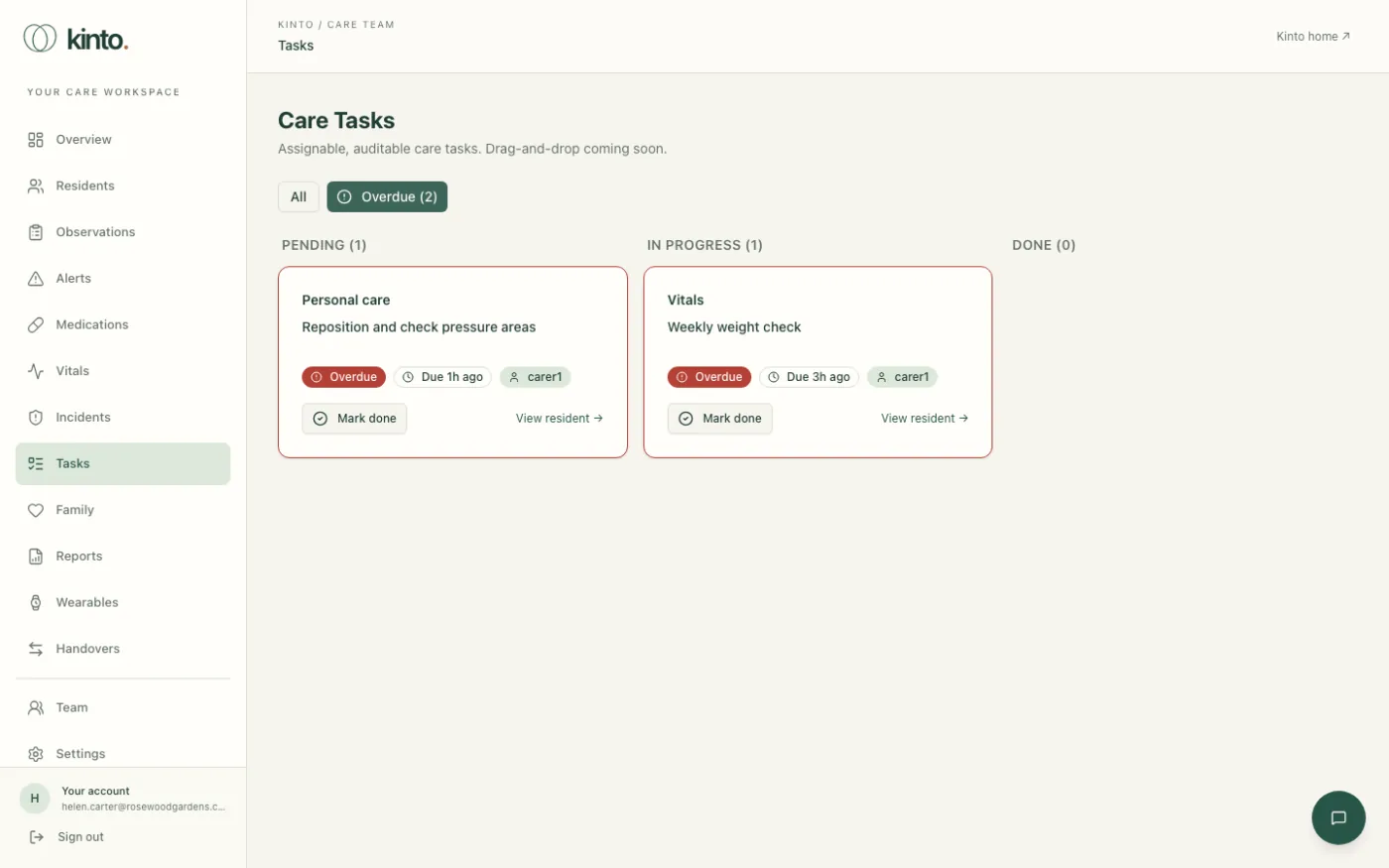
Overdue tasks and your tasks
A task that’s past its due time and not done has a red border and a red Overdue badge, and sits at the top of its column. Select Overdue above the board to see only those, or Assigned to me to see your own. Select All to see everything again.
Still stuck, or spotted something that doesn’t match what you see? Email support@kinto.you and tell us which page you were on. Please don’t include residents’ personal or medical details.