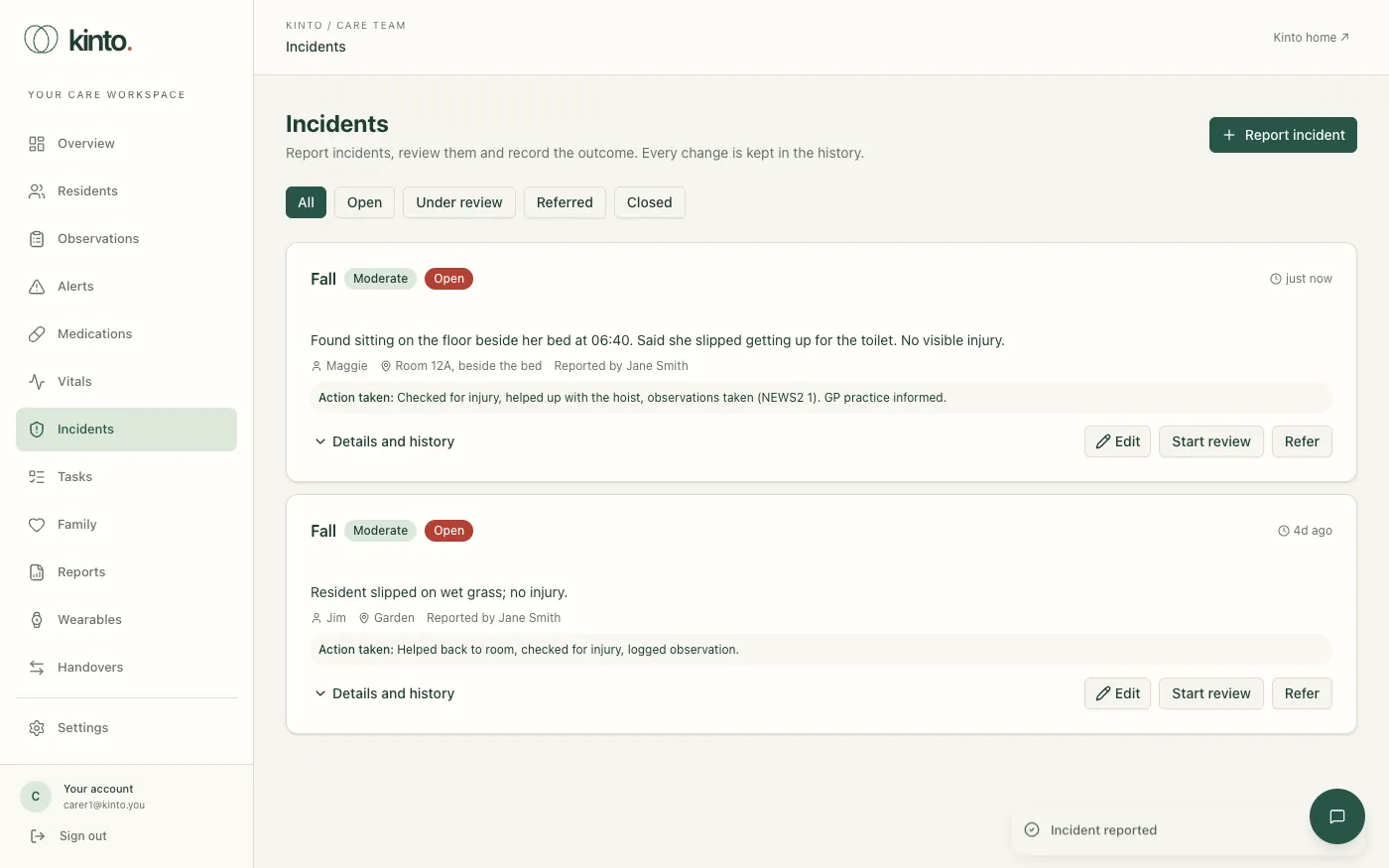
Incidents is where you report incidents and where managers review and close them: falls, medication errors, safeguarding concerns, behaviour, accidents or injuries, pressure sores, near misses and others. Every change is kept in the incident’s history.
Report an incident
- Select Report incident.
- Choose the Type and the Resident. A resident is needed for falls, pressure sores, behaviour, safeguarding and medication errors; for an accident, near miss or other incident you can choose No resident involved.
- Choose the Severity, check When it happened and say Where.
- Under What happened, write the facts: what you saw and heard, and what the resident said.
- Add the Immediate action taken and any Witnesses.
- Tick who has been told: family, the GP or other clinician, and whether a CQC notification is needed.
- Select Report incident. It appears at the top of the list as Open.
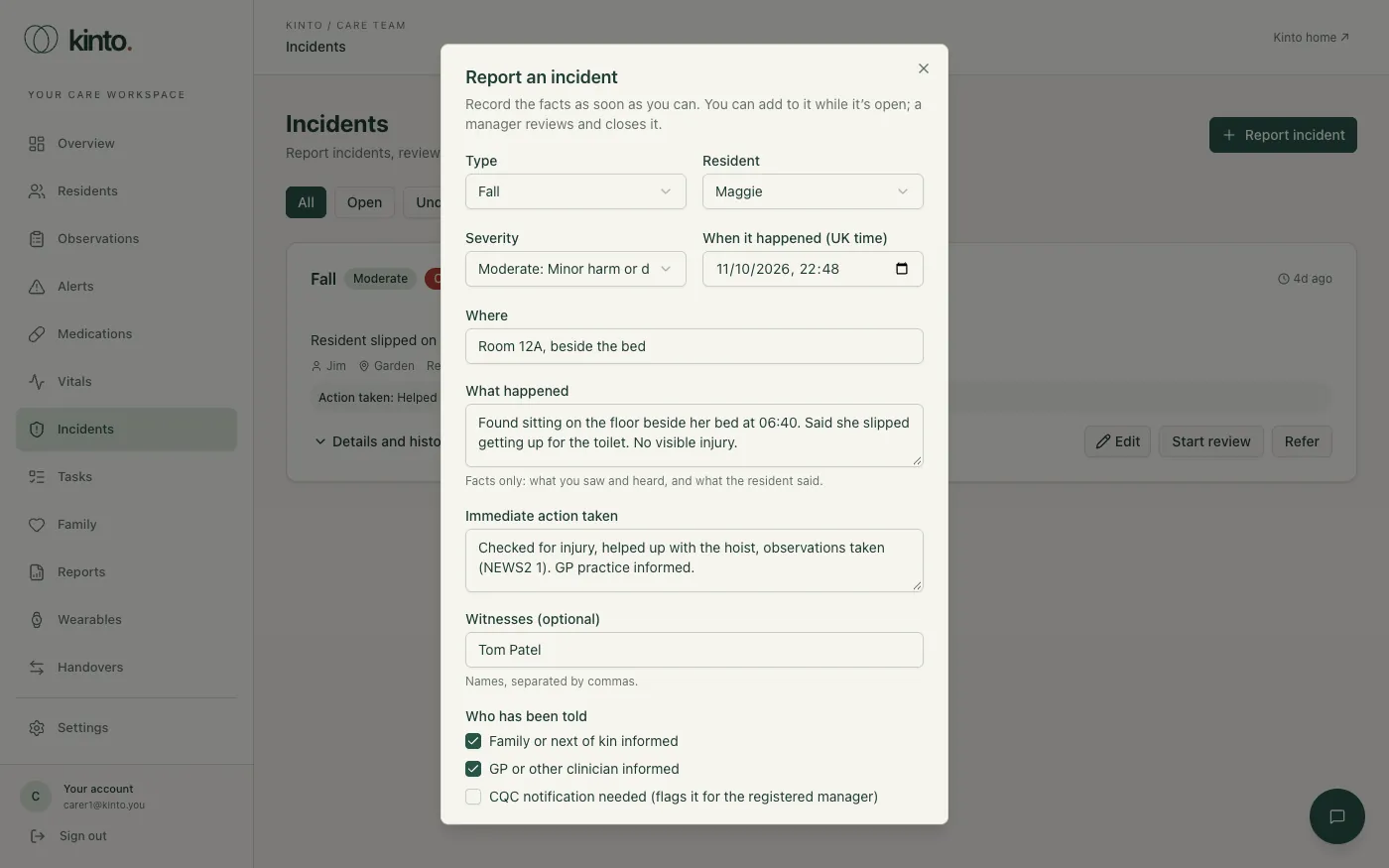
For serious injuries and safeguarding concerns Kinto reminds you that a CQC notification is usually needed. Ticking CQC notification needed flags the incident for the registered manager; Kinto doesn’t notify CQC.
Review, refer and close
Each incident shows the next steps it can take, following open → under review → closed:
- Start review moves it to Under review. Add a note if useful.
- Refer records that it was referred to an outside body, such as the local authority safeguarding team. A note saying who is required.
- Close needs the Outcome (what was found and done) and can include Lessons learned. An open incident is reviewed before it can be closed.
- Reopen on a closed incident needs a note saying why.
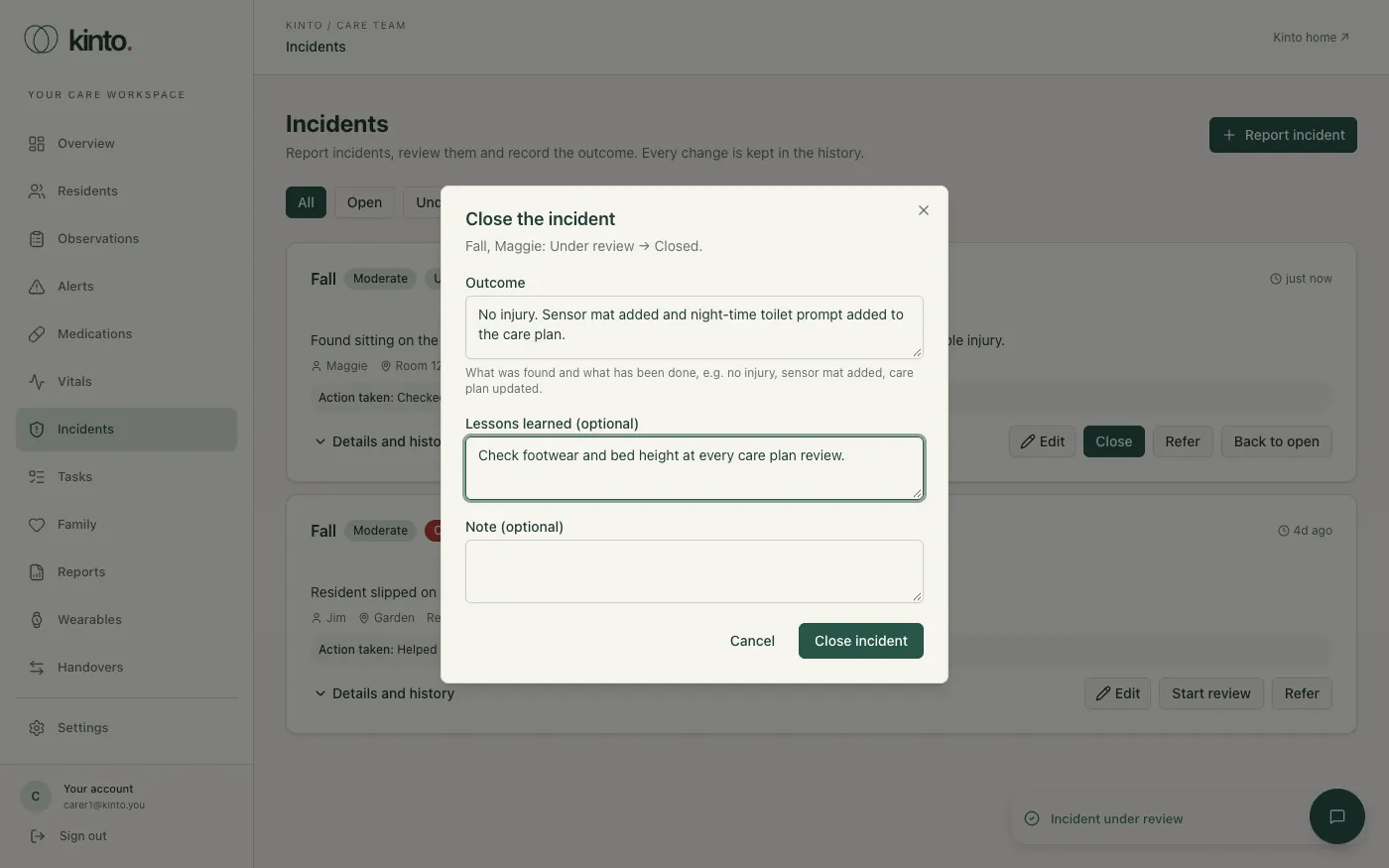
Use Edit to add to an incident while it’s open or under review. A closed incident can’t be edited until it’s reopened, and only owners and admins can delete an incident.
Details and history
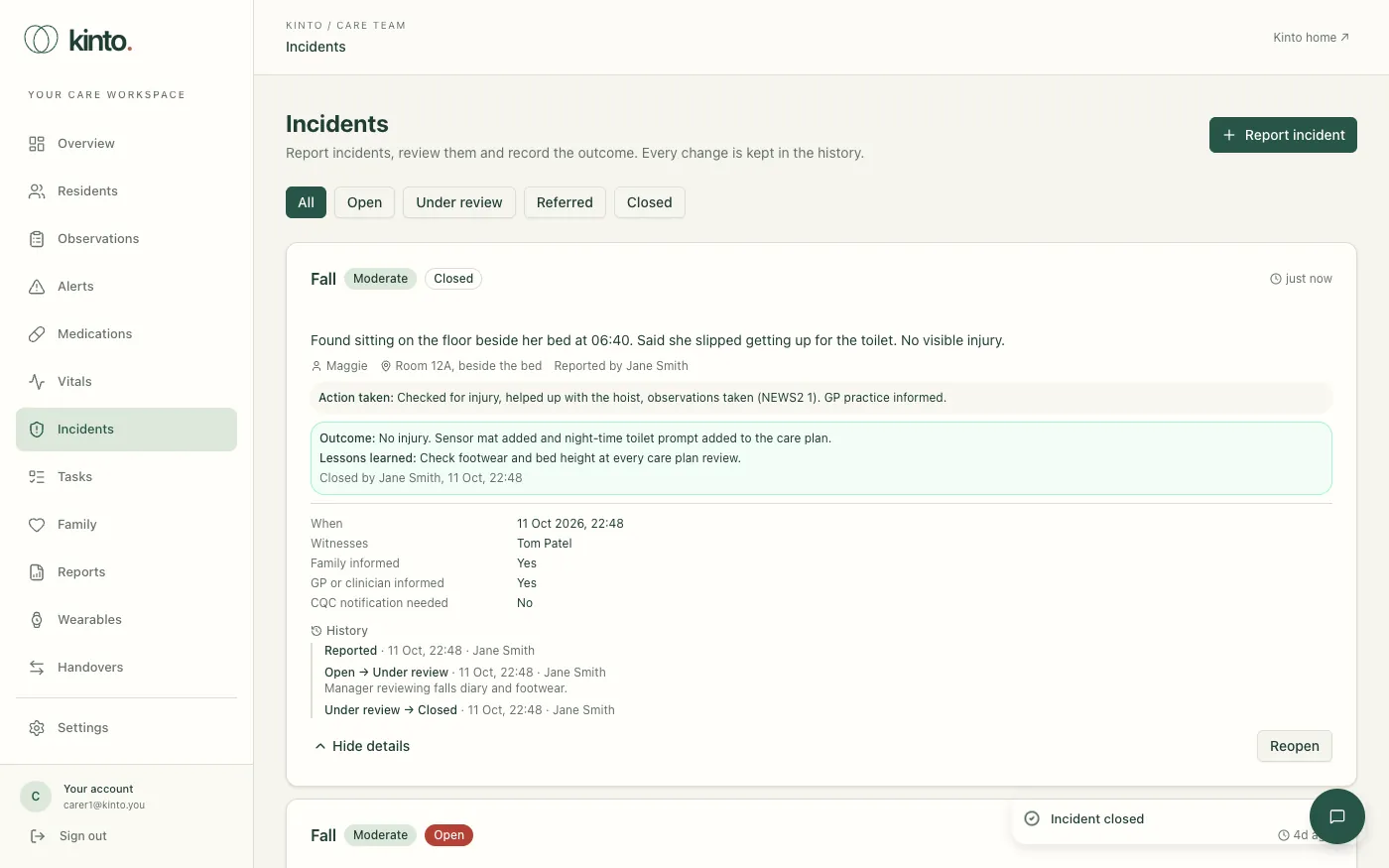
Select Details and history on an incident to see the witnesses, who was told, the CQC flag and every status change with who made it, when, and their note.
Filter by status
Use the buttons above the list: All, Open, Under review, Referred or Closed. For example, choose Open at the start of a shift to see what still needs following up.
Still stuck, or spotted something that doesn’t match what you see? Email support@kinto.you and tell us which page you were on. Please don’t include residents’ personal or medical details.