Owners and admins decide who can use the care team workspace and what they can do. Everything happens on the Team page, which only owners and admins can see in the menu.
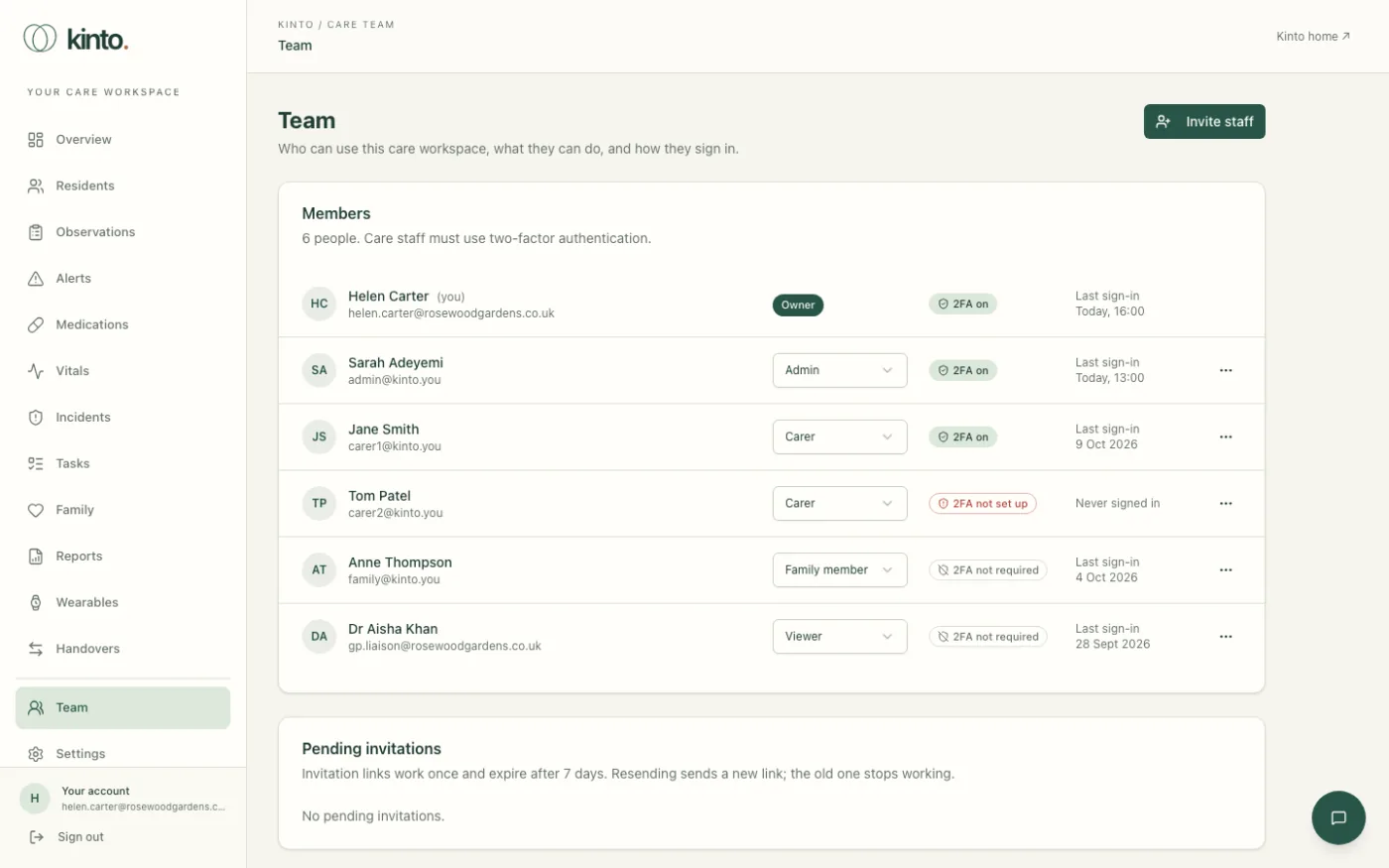
Roles
| Role | What they can do | Two-factor |
|---|---|---|
| Owner | Full control, including other owners and the organisation itself. | Required |
| Admin | Manages the team and all care records. Can’t change owners. | Required |
| Carer | Reads and writes care records. Uses the Ask Sarah assistant. | Required |
| Viewer | Reads care records but can’t change them. Sees Read-only access at the top of every page. | Optional |
| Family member | No care team access. For relatives using the Kinto app. | Optional |
Owners can give any role. Admins can give admin, carer, viewer and family member, but can’t create, change or remove owners. Nobody can change their own role or remove themselves.
Invite someone
- Open Team and select Invite staff.
- Type their Work email.
- Choose a Role. A short description of the role appears underneath.
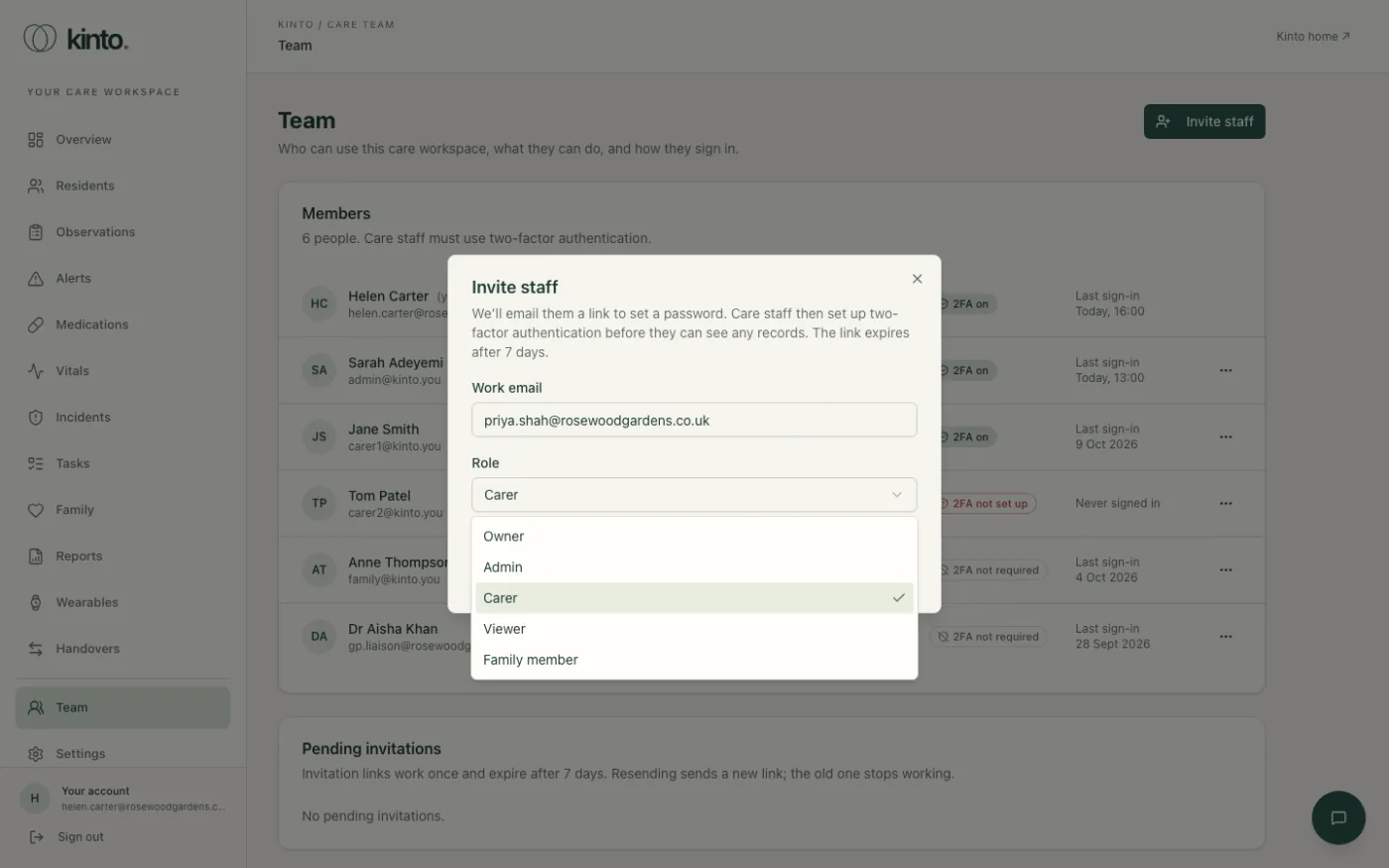
- Select Send invitation. You’ll see Invitation sent to … and they appear under Pending invitations.
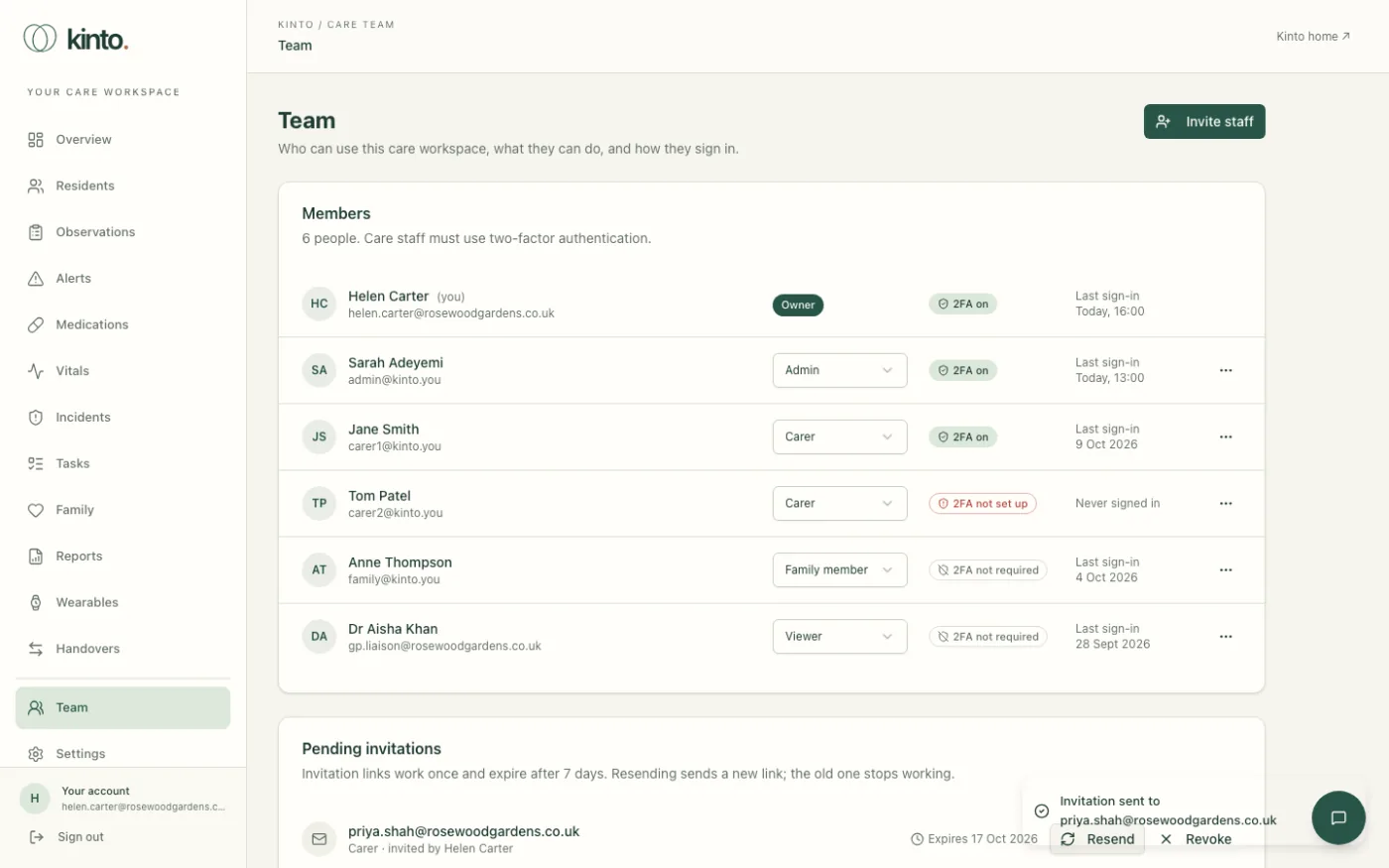
- Invitation links work once and expire after 7 days. If someone missed it, select Resend: this sends a new link and the old one stops working.
- Invited the wrong address? Select Revoke, then Revoke invitation.
- If you see Invitation saved, but the email couldn’t be sent., wait a moment and select Resend.
Check who has set up two-factor
Each person shows a badge:
- 2FA on: set up and working.
- 2FA not set up: required for their role but not done yet. They’ll be asked to set it up at their next sign-in and can’t see records until they do.
- 2FA not required: viewers and family members.
The last column shows their last sign-in, or Never signed in.
Change someone’s role
- Find the person and open the role list next to their name.
- Choose the new role.
- Read the confirmation, for example Make Tom Patel an admin?, and select Change role.
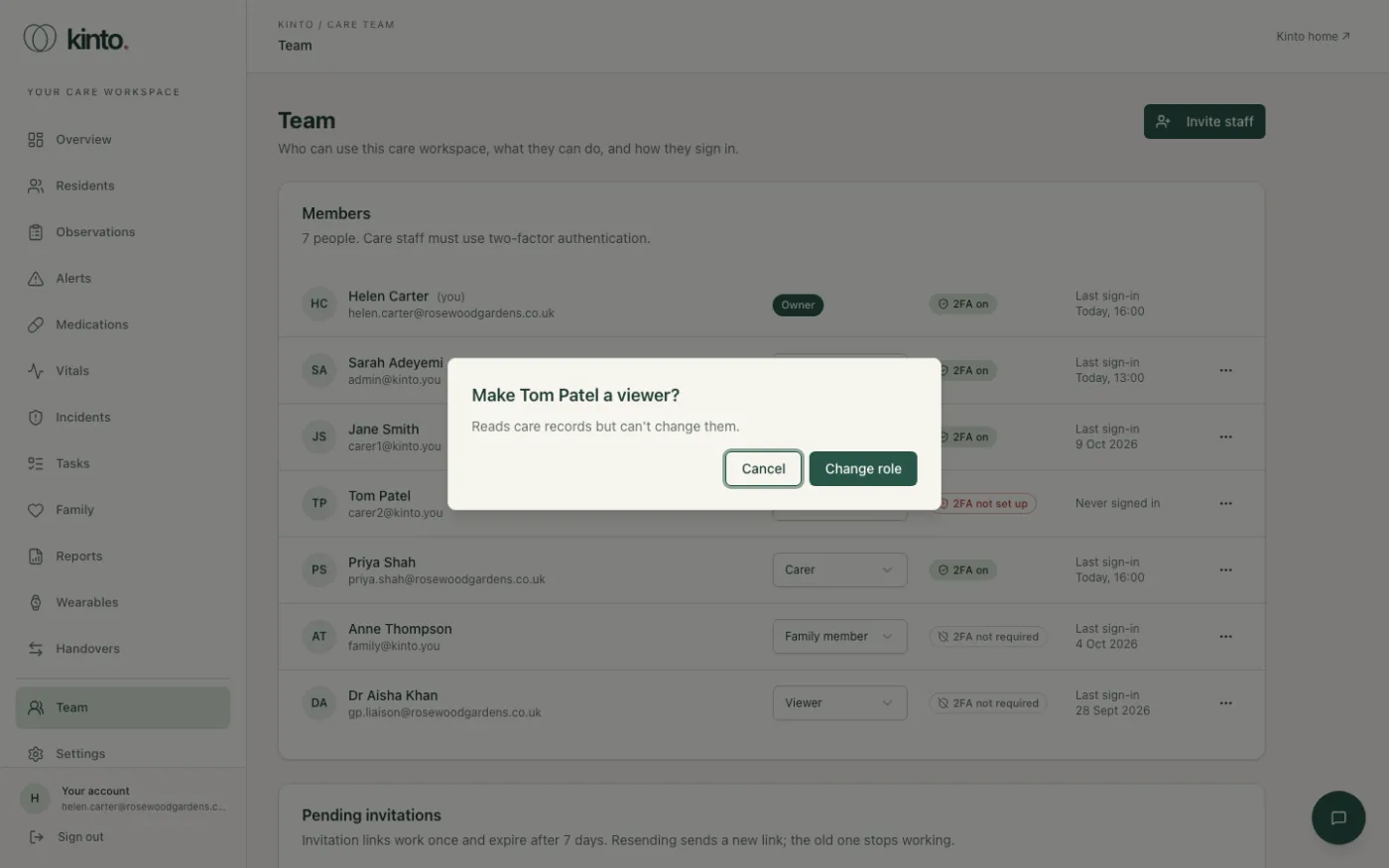
Moving a viewer to a care role means they’ll have to set up two-factor authentication before they can use the dashboard again.
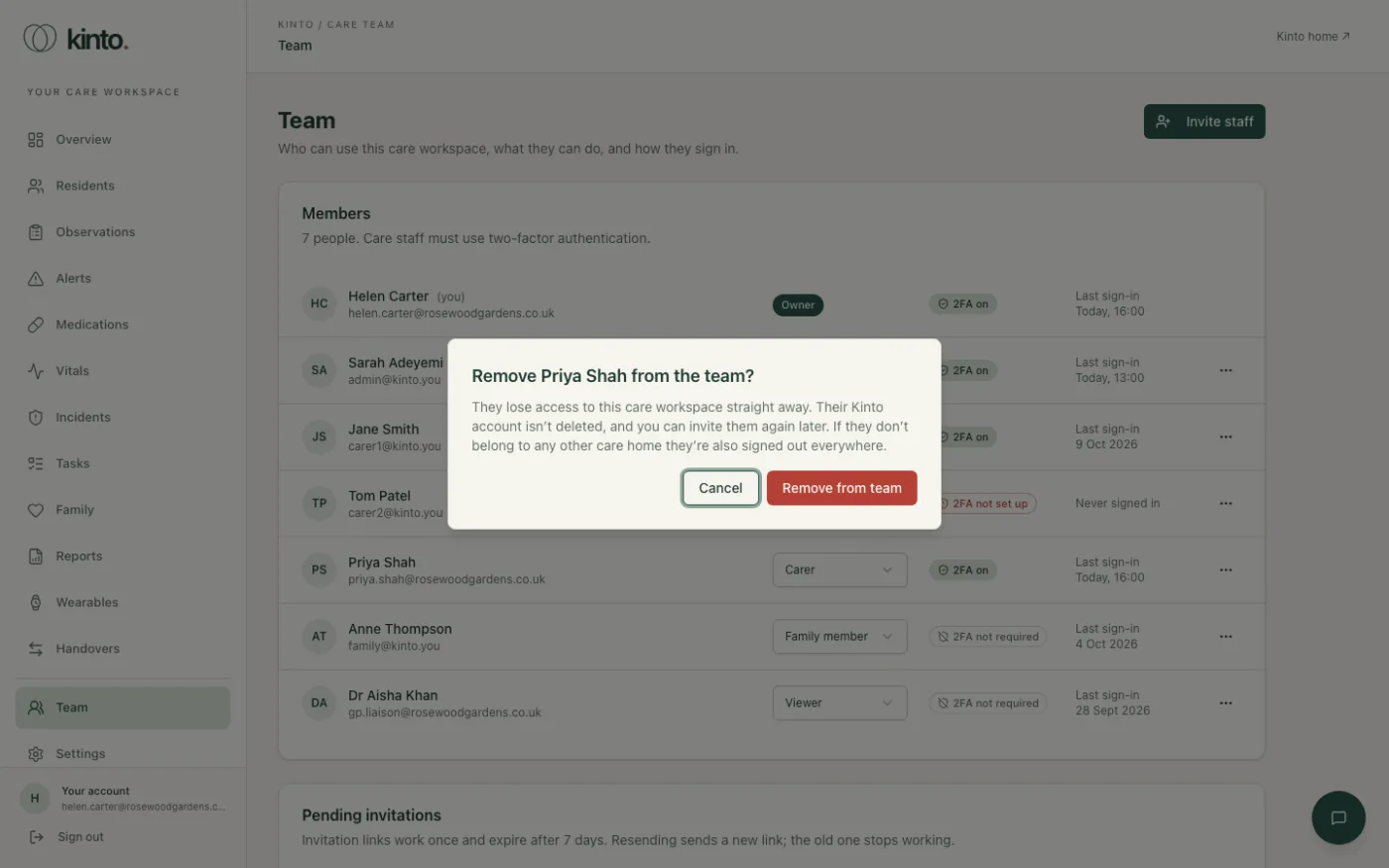
Remove someone from the team
- Select the ⋯ button at the end of their row, then Remove from team.
- Select Remove from team to confirm.
They lose access straight away. Their Kinto account isn’t deleted and you can invite them again later. Remove leavers on their last day.
Reset someone’s two-factor authentication
Use this when someone has lost their phone and their recovery codes.
- Check it’s really them asking: in person, or by calling them on a number you already have.
- Select ⋯ on their row, then Reset two-factor.
- Select Reset two-factor to confirm.
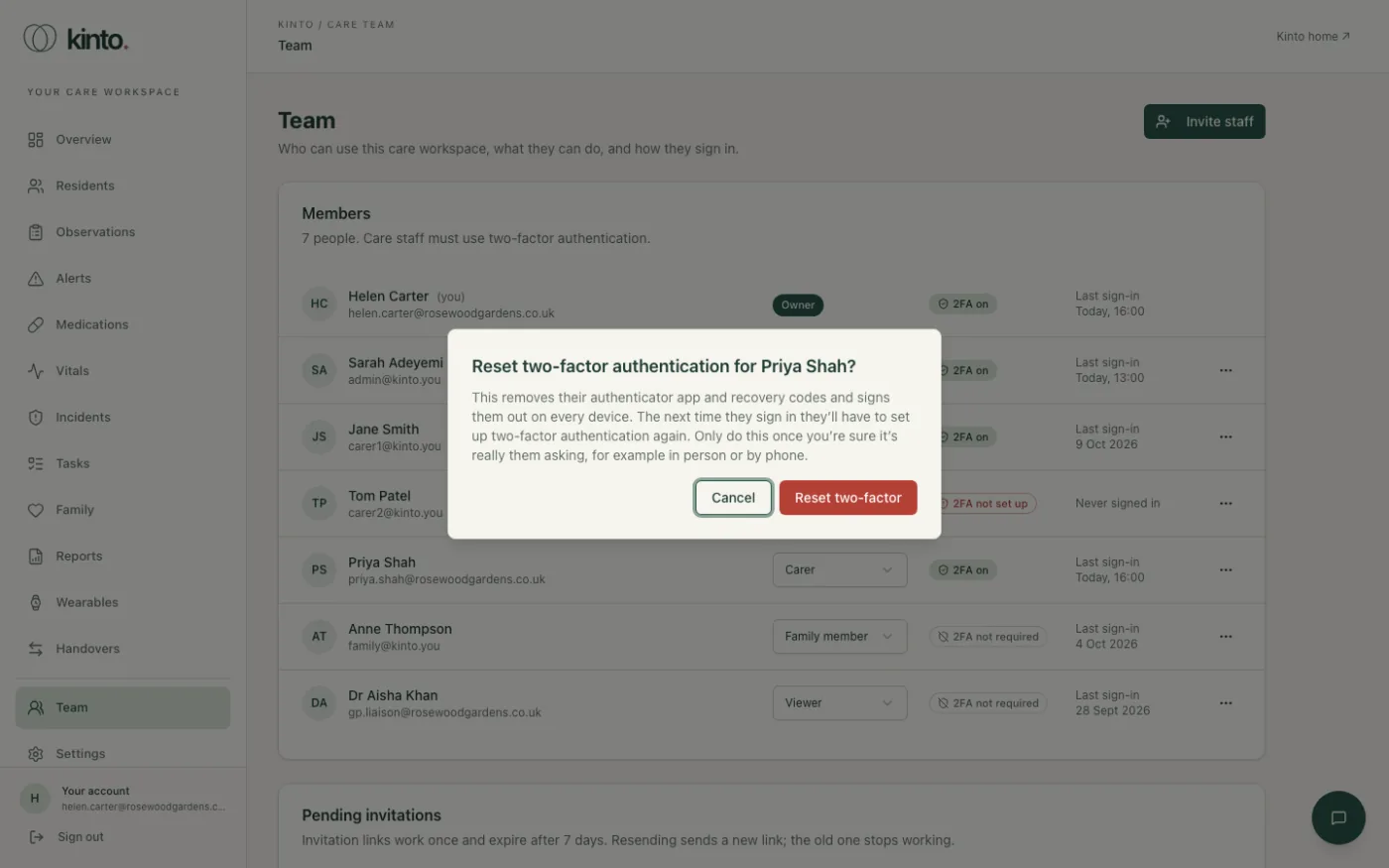
This removes their authenticator app and recovery codes and signs them out on every device. Their badge changes to 2FA not set up, and the next time they sign in they set it up again. If Reset two-factor is greyed out, that person hasn’t set up two-factor authentication yet, so there’s nothing to reset.
Rules that keep your home in charge
- An organisation always needs at least one owner. To remove or change the last owner, make someone else an owner first. You’ll see An organisation needs at least one owner. Make someone else an owner first.
- We recommend two owners, for example the registered manager and the provider’s nominated individual, so one can help the other.
- Review the Team page every month, and whenever someone leaves.
The audit trail
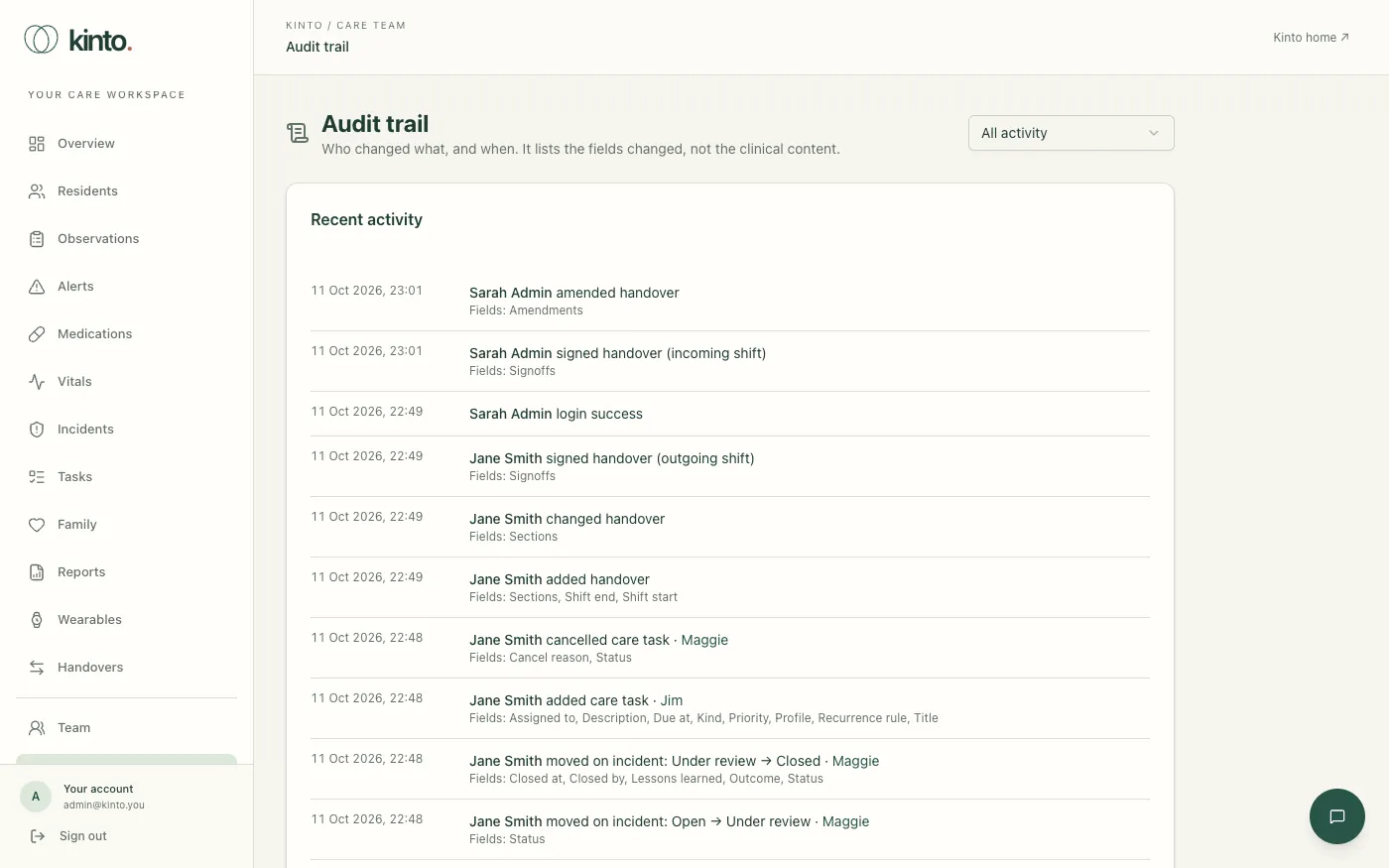
Audit trail, below Team in the menu, lists who changed what and when: residents added or edited, doses recorded, observations and their NEWS2 score, incidents moved on, tasks completed or cancelled, handovers signed, alerts dismissed, and sign-in, two-factor and team events. Each entry names the person, the record, the resident it belongs to and the fields that changed. It never shows the clinical content itself.
- Select Audit trail in the menu.
- Use the menu at the top right to show one area, for example Medicines (MAR) or Incidents.
- Select a resident’s name to open their profile, and Show more for older entries.
Still stuck, or spotted something that doesn’t match what you see? Email support@kinto.you and tell us which page you were on. Please don’t include residents’ personal or medical details.