Alerts are changes Kinto has noticed that may need a look, for example a resident’s mood being lower than their usual pattern for several days, disrupted sleep, a late medicine, or a rising fall-risk score. They help you spot things early. They are not an emergency alarm.
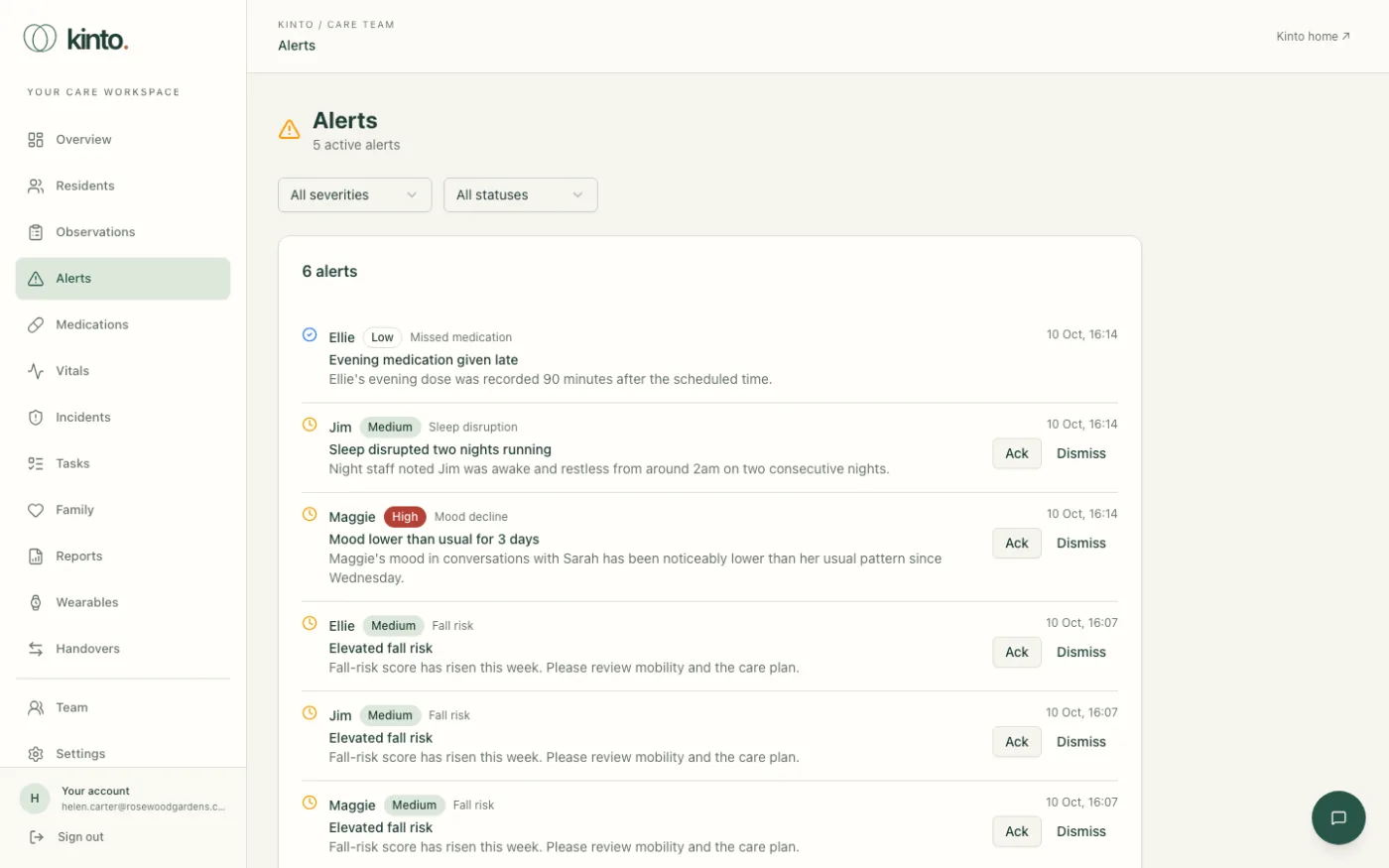
Reading an alert
- The icon shows its status: a clock for active, a blue tick for acknowledged, a grey cross for dismissed.
- Next to the resident’s name is the severity (Low, Medium, High or Critical) and the kind of alert, for example Fall risk, Mood decline, Missed dose or Early warning (NEWS2).
- Then a title, such as Mood lower than usual for 3 days, and a short explanation.
The number under the heading, for example 5 active alerts, counts the alerts nobody has dealt with yet, including the ones Kinto raises automatically (fall risk, early warning, missed doses and other predictions).
Filter the list
Use All severities to show only Low, Medium, High or Critical alerts, and All statuses to show only Active, Acknowledged or Dismissed ones.
Acknowledge an alert
Acknowledging tells the team “I’ve seen this and I’m dealing with it”.
- Read the alert and check on the resident, following your usual practice.
- Select Ack on the alert. You’ll see Alert acknowledged and the icon turns into a blue tick.
- Record what you found and did as an observation on the resident’s profile.
Dismiss an alert
Dismiss an alert when it isn’t a concern, for example the change has an explanation you already know about.
- Select Dismiss. The Dismiss this alert? box opens, showing the resident and the alert.
- Type a short reason in Reason for dismissing, for example “Family visit cancelled, mood already discussed with Maggie”.
- Select Dismiss alert. You’ll see Alert dismissed. The reason is shown on the alert for the rest of the team.
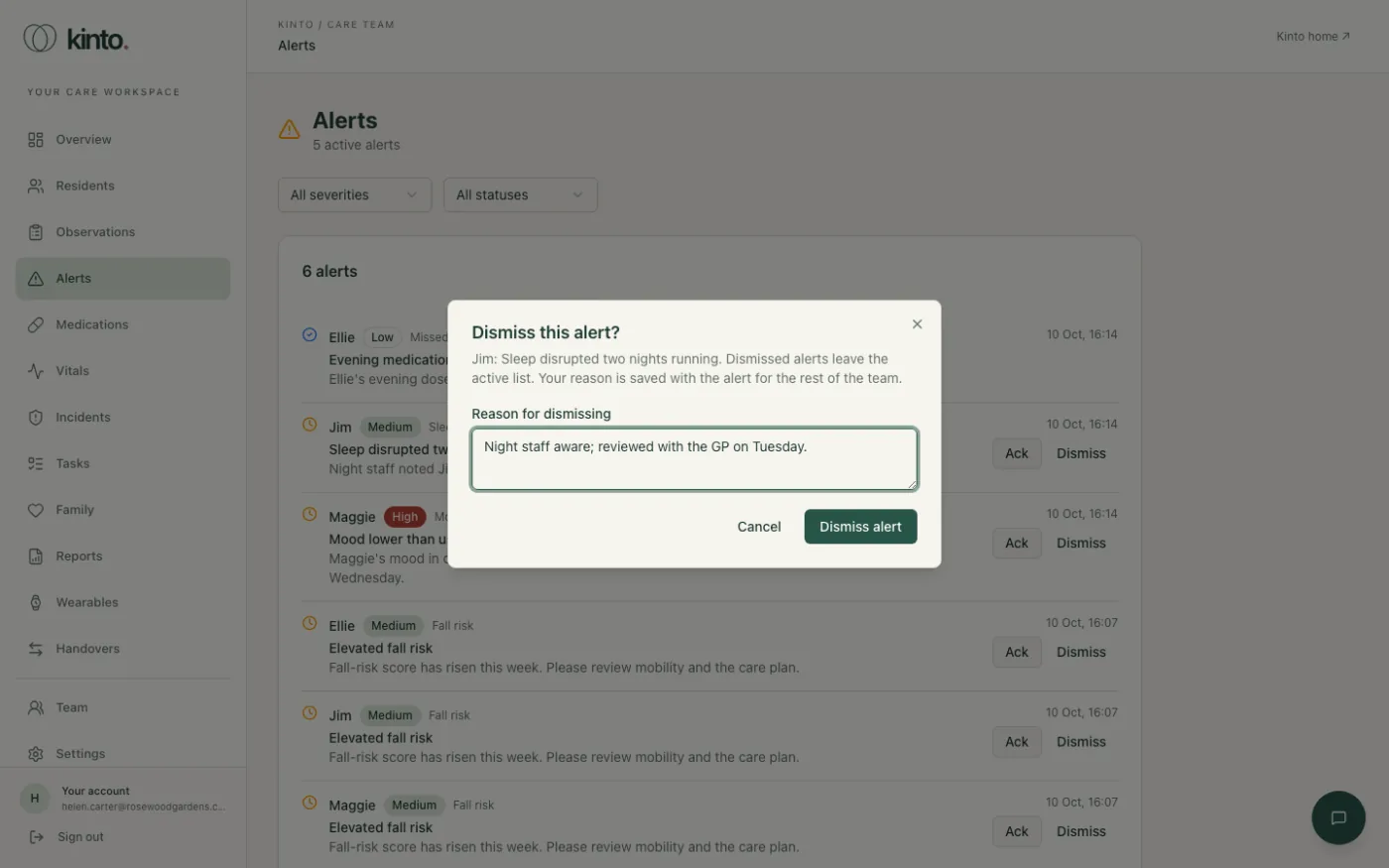
Dismiss alert stays greyed out until you type a reason. Cancel closes the box without changing anything.
Still stuck, or spotted something that doesn’t match what you see? Email support@kinto.you and tell us which page you were on. Please don’t include residents’ personal or medical details.