You join your care home’s Kinto workspace from an email invitation. It takes about five minutes. You’ll need the computer you’ll use Kinto on, and your own smartphone.
Before you start
- Install an authenticator app on your phone from the App Store or Google Play. Any of these work: Google Authenticator, Microsoft Authenticator or 1Password. Ask your manager if your home prefers a particular one.
- Find the email from Kinto with the subject “You’re invited to join [your care home] on Kinto”.
- Have a safe place ready for your recovery codes, like a password manager. Your manager may give you a sealed envelope to keep them in.
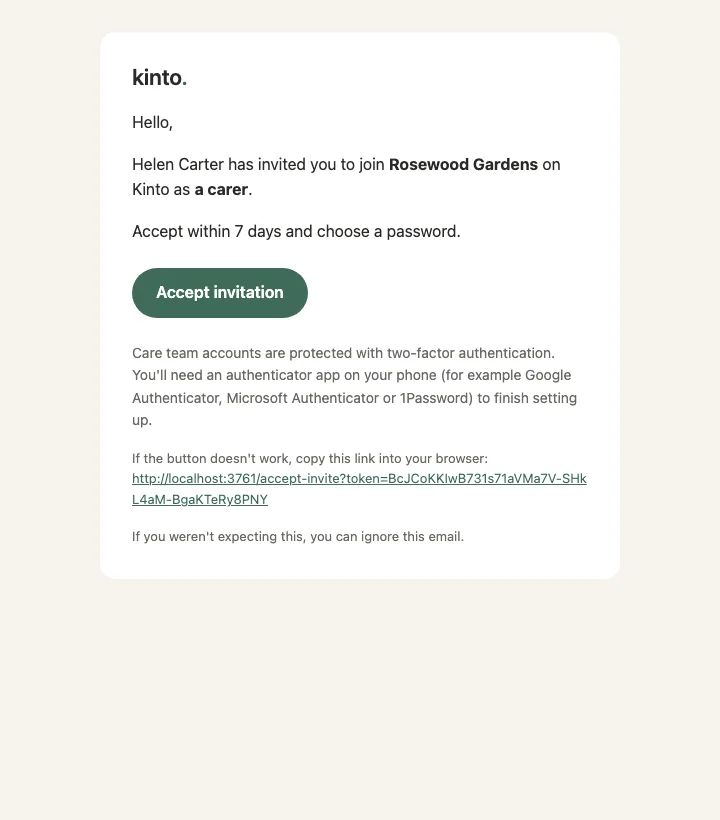
Accept the invitation
- Open the invitation email and select the link. It opens Join [your care home]. and shows the role you’ve been invited as.
- Type Your name. Your team sees this name.
- Type a password in Choose a password, then again in Confirm password. Use at least 8 characters, and avoid common words and anything based on your name or email.
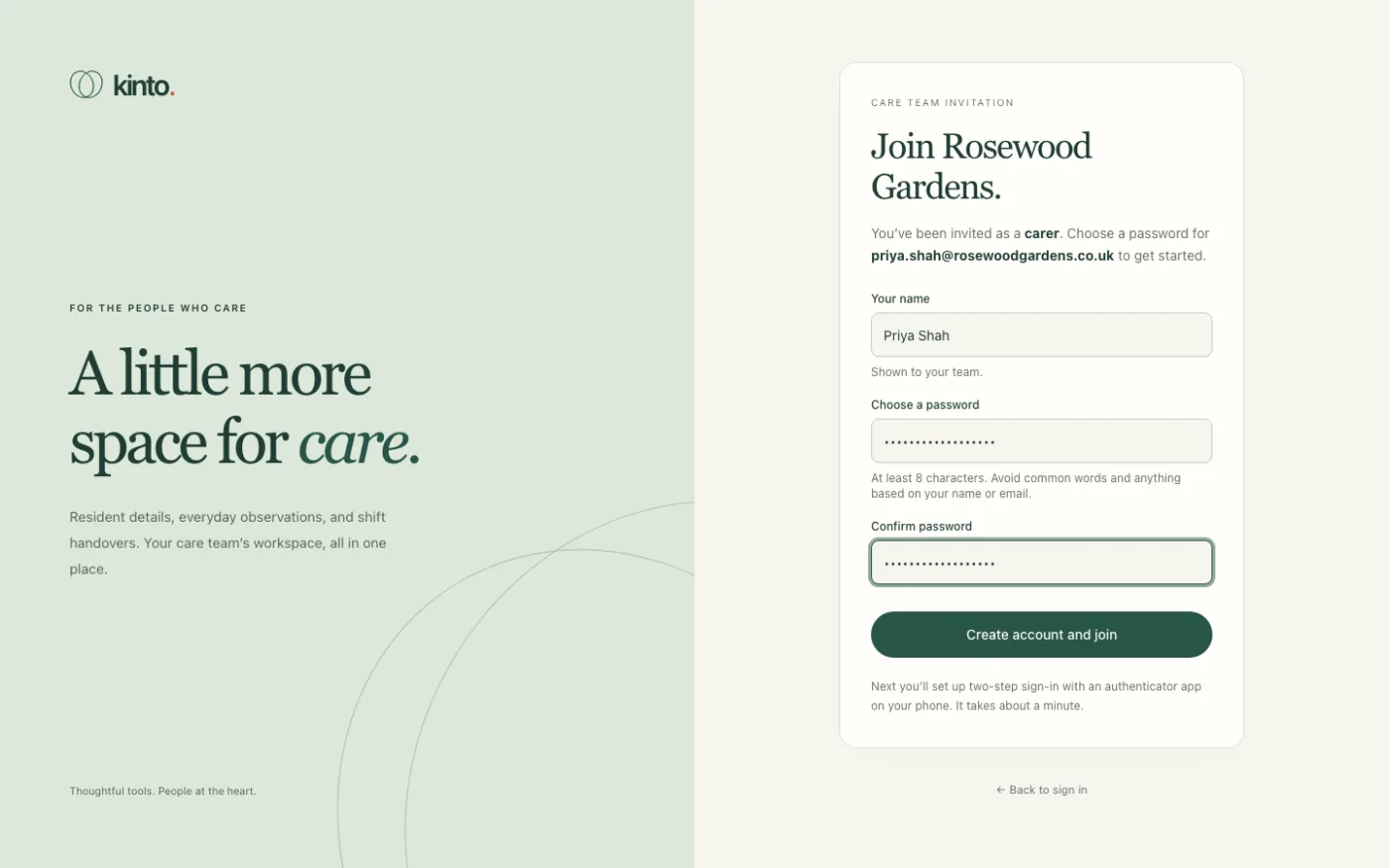
- Select Create account and join.
Step 1 of 2: connect your authenticator app
Owners, admins and carers then see Set up two-factor authentication. You can’t open the dashboard until this is done. Viewers don’t have to set it up, but we recommend it (see Your account and security settings).
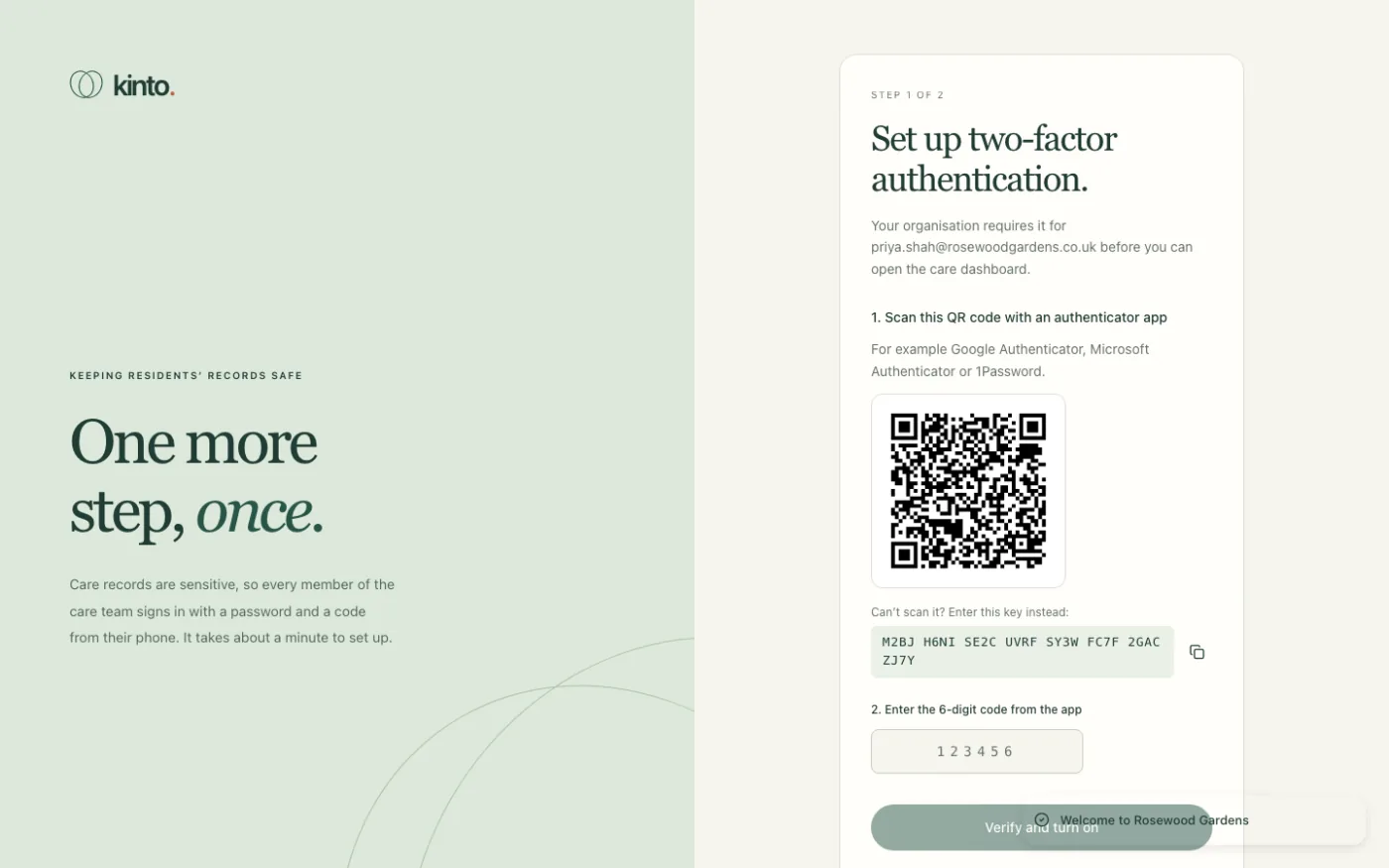
- Open your authenticator app and choose to add an account (often a + button), then Scan a QR code.
- Point your phone’s camera at the QR code on the screen. A Kinto entry appears in the app with a 6-digit code.
- Can’t scan it? Under Can’t scan it? Enter this key instead: use the copy button and type the key into the app by hand.
- Type the 6-digit code from the app into 2. Enter the 6-digit code from the app.
- Select Verify and turn on.
Step 2 of 2: save your recovery codes
Next you’ll see Save your recovery codes. These 10 codes are how you get in if you lose your phone. Each one works once. You won’t see them again, so save them now.
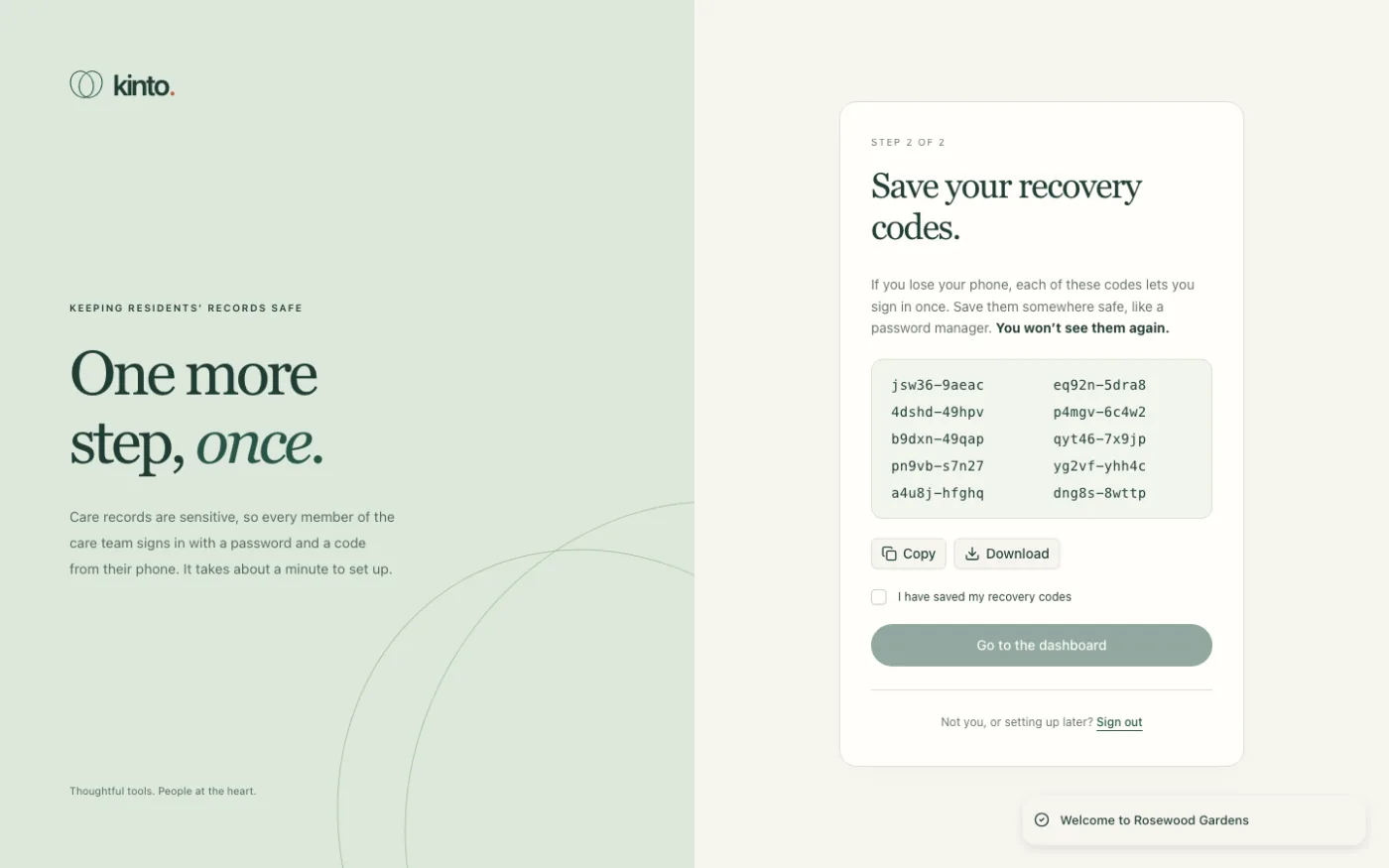
- Select Download to save them as a file (
kinto-recovery-codes.txt), or Copy to paste them into your password manager. You can also write them down. - Keep them somewhere safe and separate from your phone. Don’t keep them on a shared computer or in a shared drive.
- Tick I have saved my recovery codes.
- Select Go to the dashboard. You’ll see Two-factor authentication is on.
If the invitation link doesn’t work
If you see This invitation can’t be used., the link has expired, has already been used, or was replaced when your manager resent it. Ask your manager to send it again from the Team page. Only the newest link works.
Need to stop halfway? Select Sign out under Not you, or setting up later?. Next time you sign in you’ll be taken straight back to the set-up screen.
Still stuck, or spotted something that doesn’t match what you see? Email support@kinto.you and tell us which page you were on. Please don’t include residents’ personal or medical details.