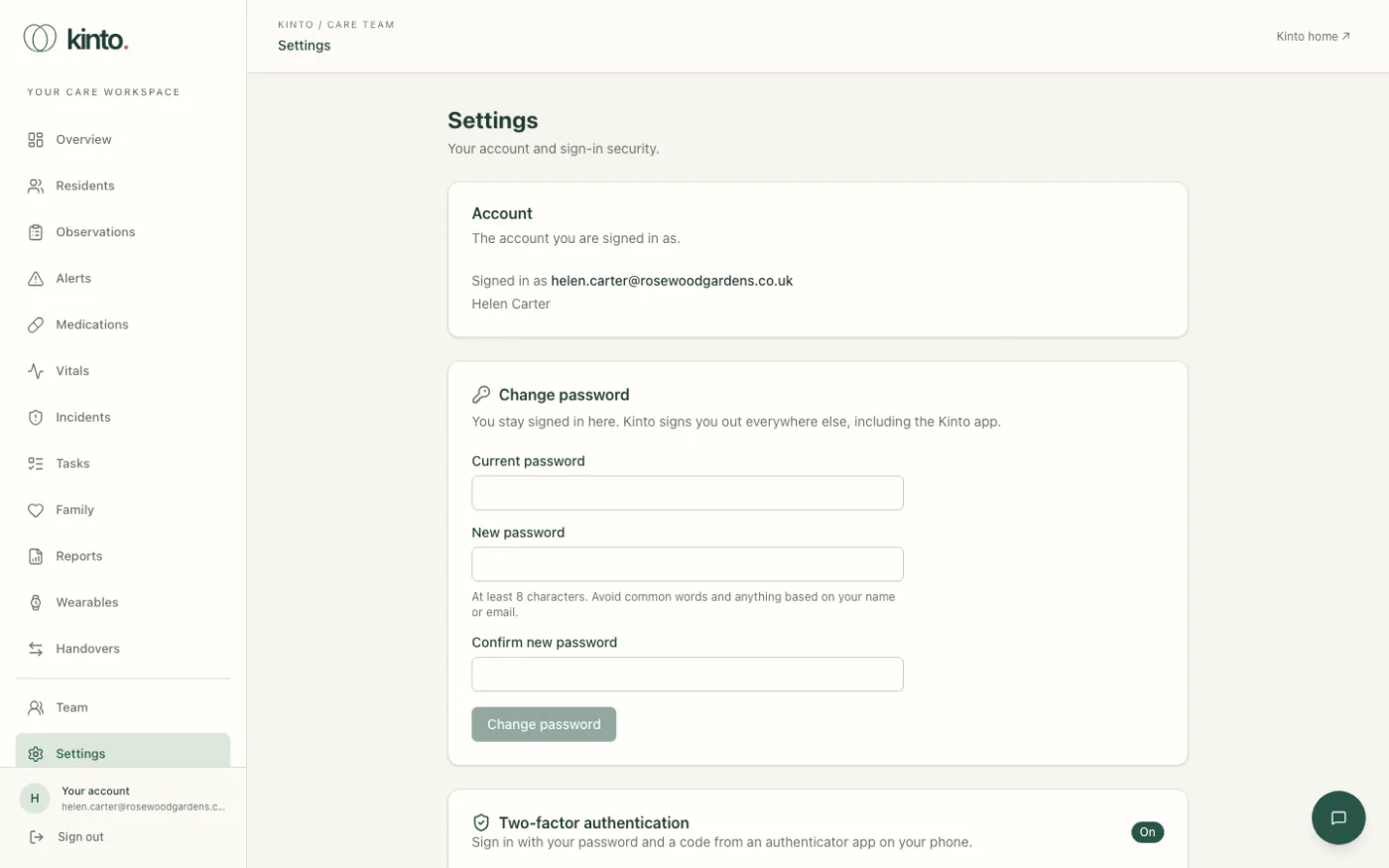
Open Settings at the bottom of the menu to see your account and your sign-in security.
What’s in Settings
- Account: the email address you’re signed in with, and your name.
- Change password: change the password you sign in with (see below).
- Two-factor authentication: whether it’s On, how many recovery codes you have left, and the New recovery codes and Move to a new phone buttons. See Lost or new phone.
Changing your password
- Open Settings and find Change password.
- Type your Current password.
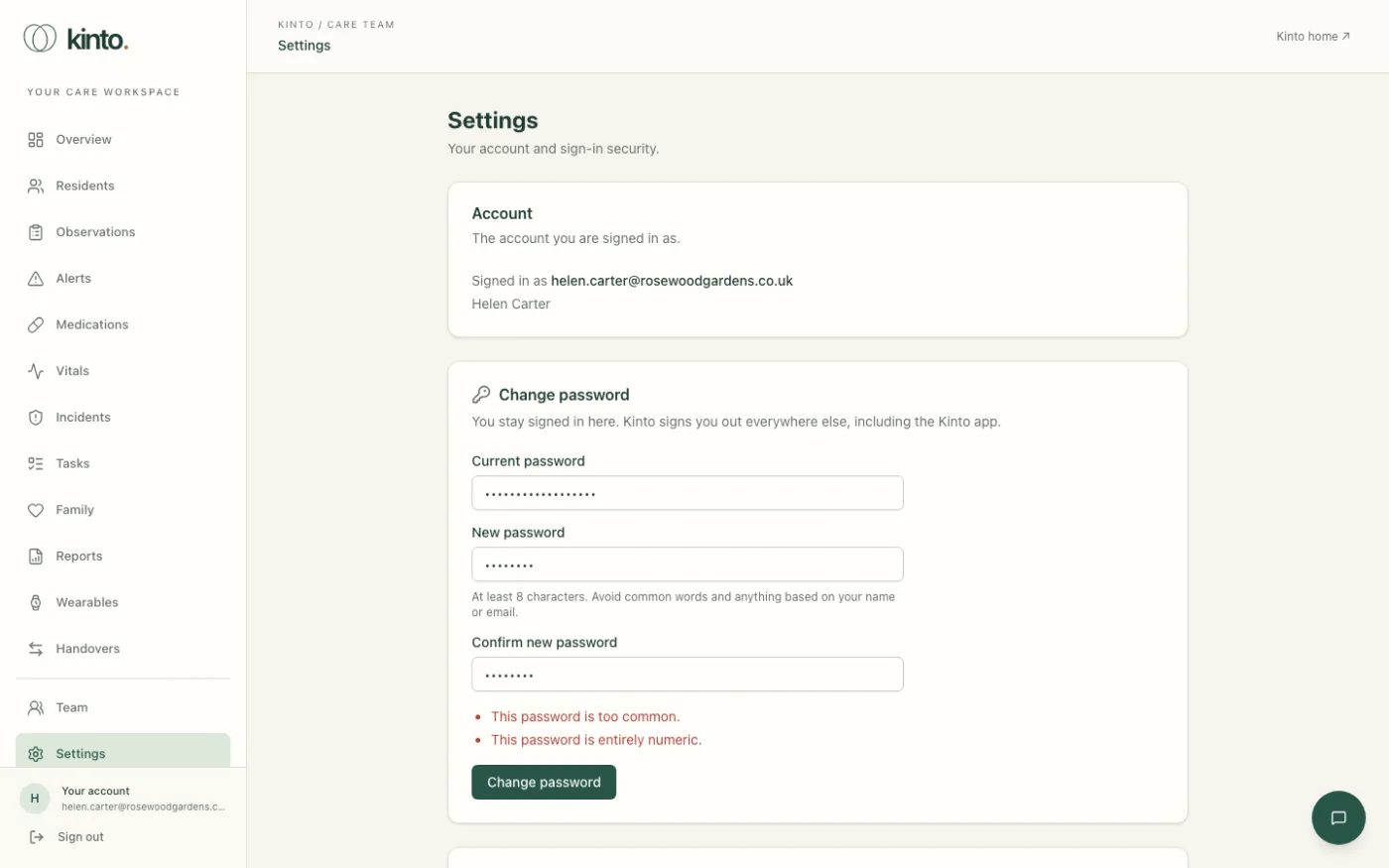
- Type your New password, then type it again in Confirm new password. Use at least 8 characters, and avoid common words and anything based on your name or email.
- Select Change password. You’ll see Password changed. You’ve been signed out on your other devices. You stay signed in on this computer. Anywhere else you were signed in, including the Kinto app, you’ll need to sign in again with the new password. Your two-factor set-up doesn’t change.
If the password isn’t accepted, the card says why, for example Old password is incorrect. or This password is too common. Fix it and try again.
Forgotten your password?
If you can’t remember your current password, use the reset link instead:
- On the sign-in page select Forgot password?.
- Type your email and select Send reset link. You’ll see Check your email.
- Open the email and select the link within one hour.
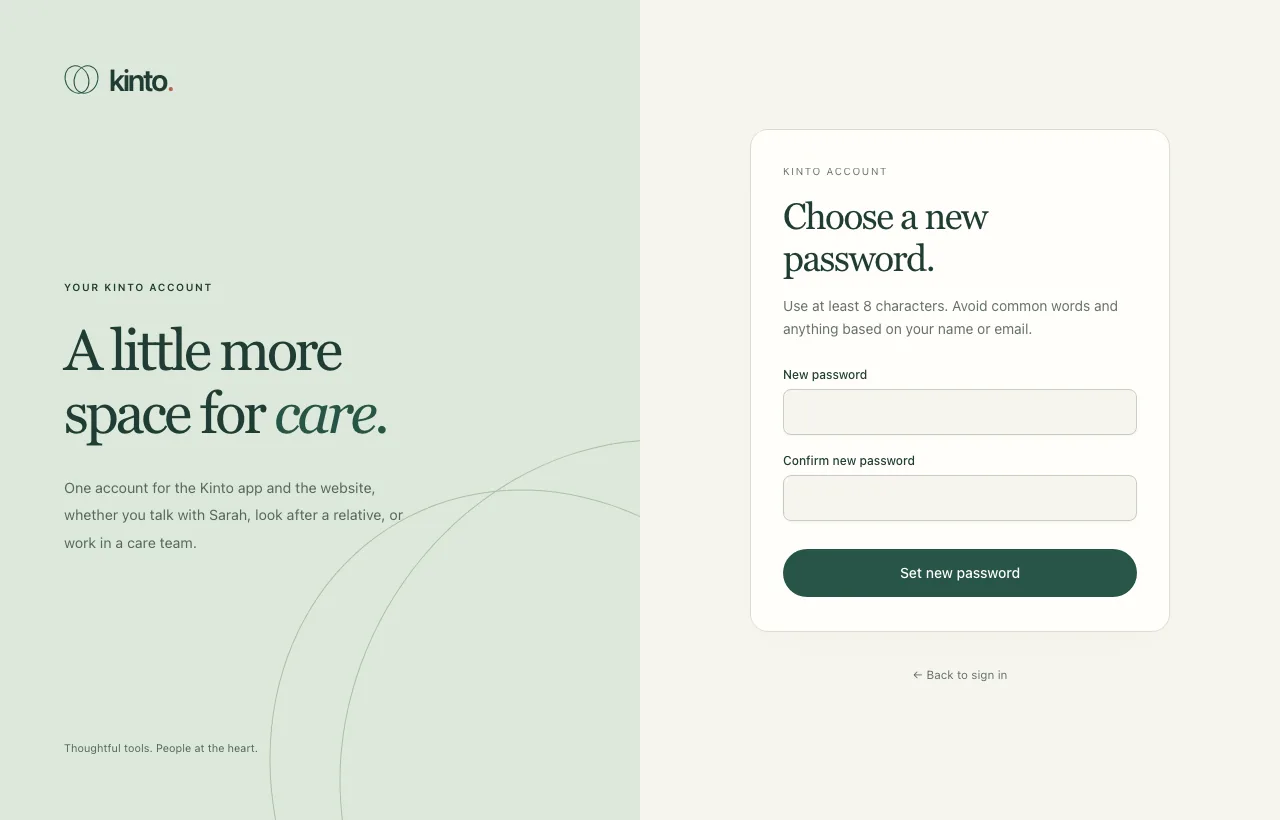
- On the Kinto account page, type your New password twice and select Set new password. You’ll see Password changed. and you’re signed out everywhere.
- Sign in with your new password and a code from your phone. Your two-factor set-up doesn’t change.
To change your name or email address, ask an owner or admin at your home to contact Kinto support.
Viewers: turning on two-factor
Two-factor authentication is optional for viewers, but we strongly recommend it. In Settings, select Set up two-factor authentication and follow the same steps as the first-time set-up. If you change your mind, the Turn off button asks for your password and a current code.
Good habits
- Lock your screen when you step away, and sign out of shared computers.
- Use a password you don’t use anywhere else.
- Don’t write residents’ details in emails to Kinto support. Describe the page and the problem instead.
- Tell your manager straight away if you think someone else knows your password or has your phone.
Still stuck, or spotted something that doesn’t match what you see? Email support@kinto.you and tell us which page you were on. Please don’t include residents’ personal or medical details.