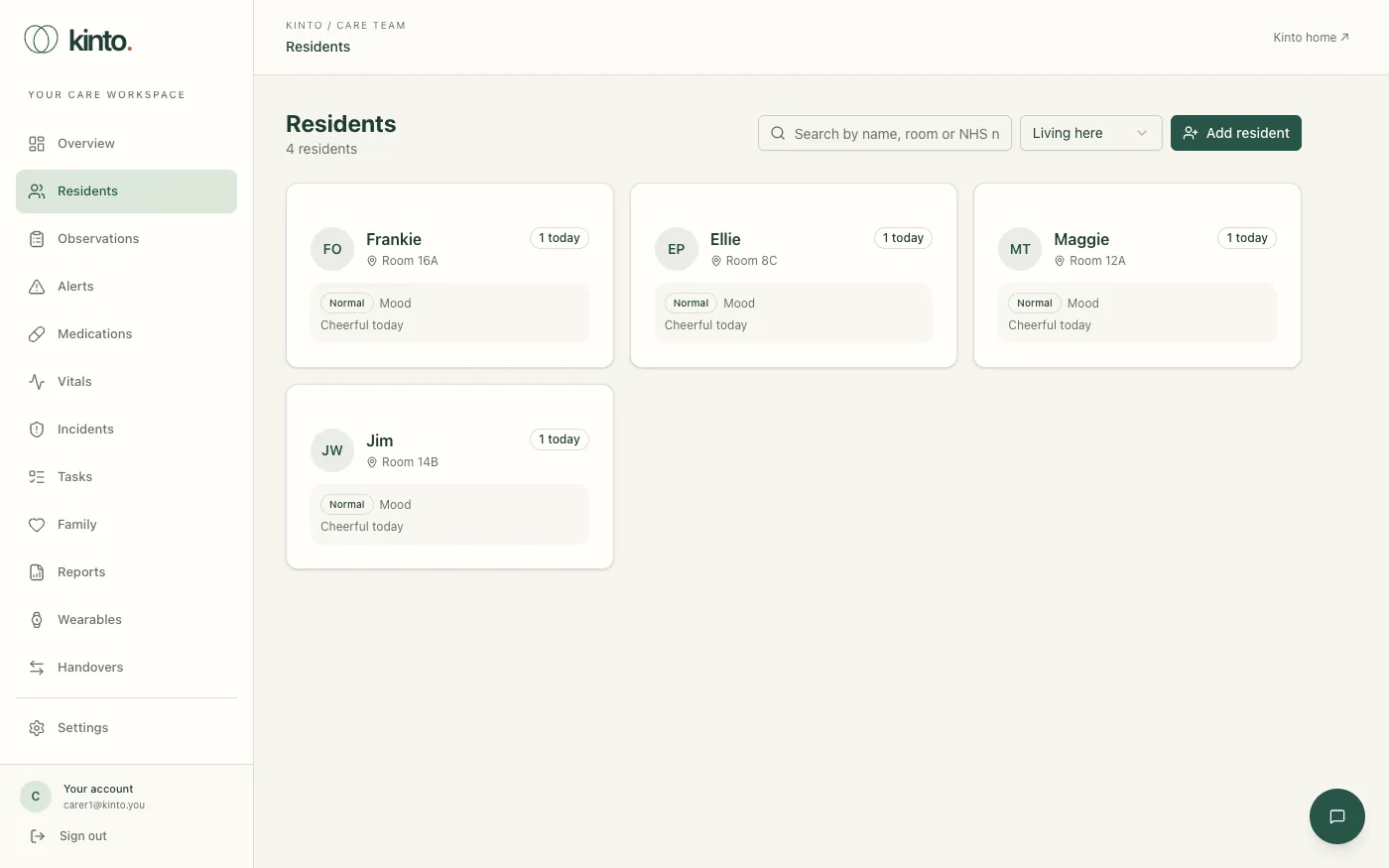
Residents lists everyone living at your home. Each card shows the resident’s initials, the name they like to be called, their room, how many observations were recorded in the last 24 hours (for example 1 today) and their latest observation.
Find a resident
- Select Residents in the menu.
- Type part of their name, room or NHS number in Search by name, room or NHS number…, for example
Maggieor12A. - Select their card to open their profile.
The list shows residents Living here. To find someone who has left, change the filter next to the search box to Discharged, Died or Everyone.
Add a resident
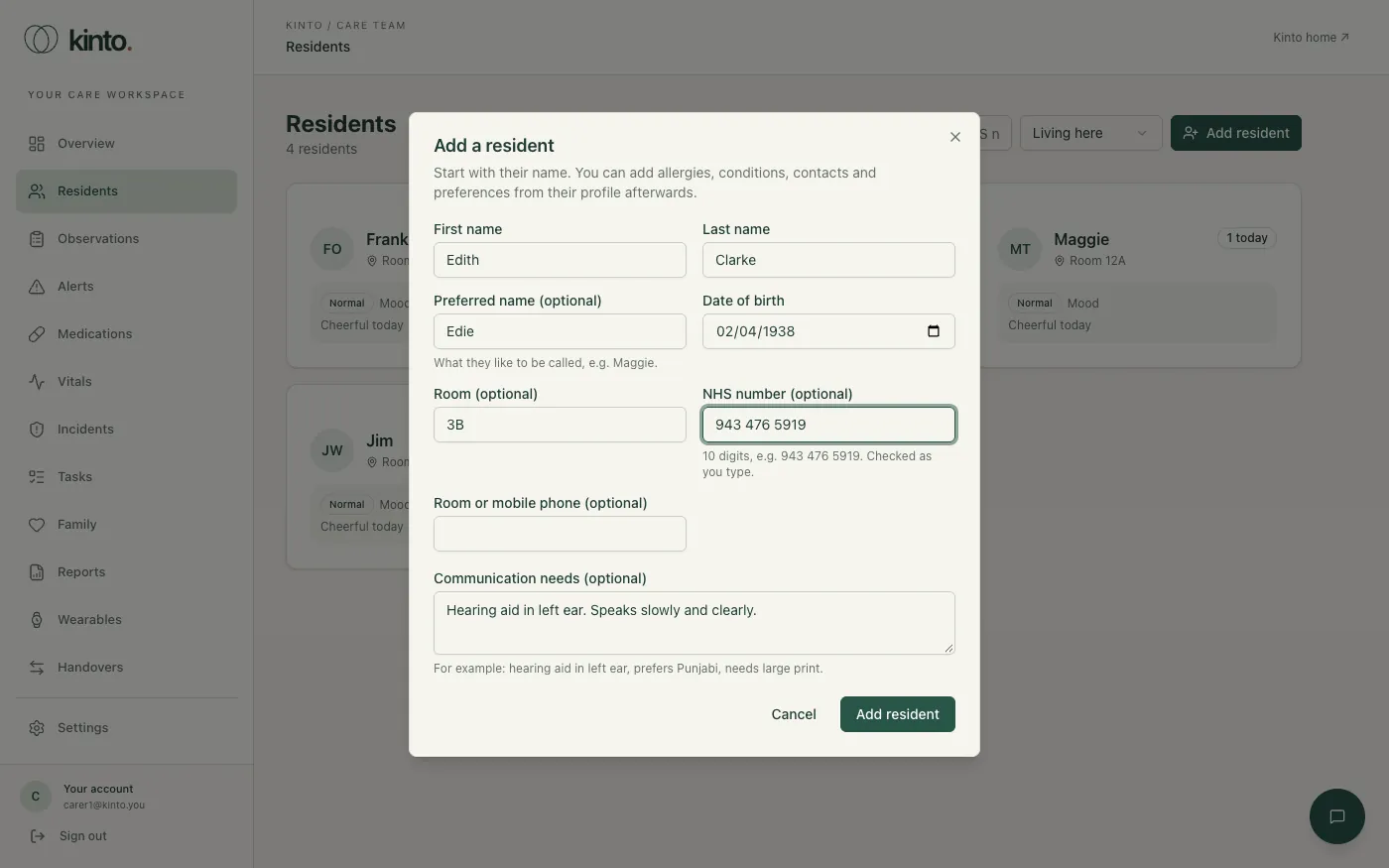
- On Residents, select Add resident.
- Enter their First name and Last name. Add a Preferred name if they like to be called something else: it’s shown everywhere in Kinto.
- Add their Date of birth, Room and, if you have it, their NHS number. Kinto checks the NHS number as you type and says if it fails the check digit, so you can correct a typing slip.
- Add any Communication needs, for example a hearing aid or a preferred language.
- Select Add resident. Their profile opens, ready for you to add allergies, conditions, contacts and preferences.
Photos can’t be added from the dashboard yet; residents show their initials.
The resident profile
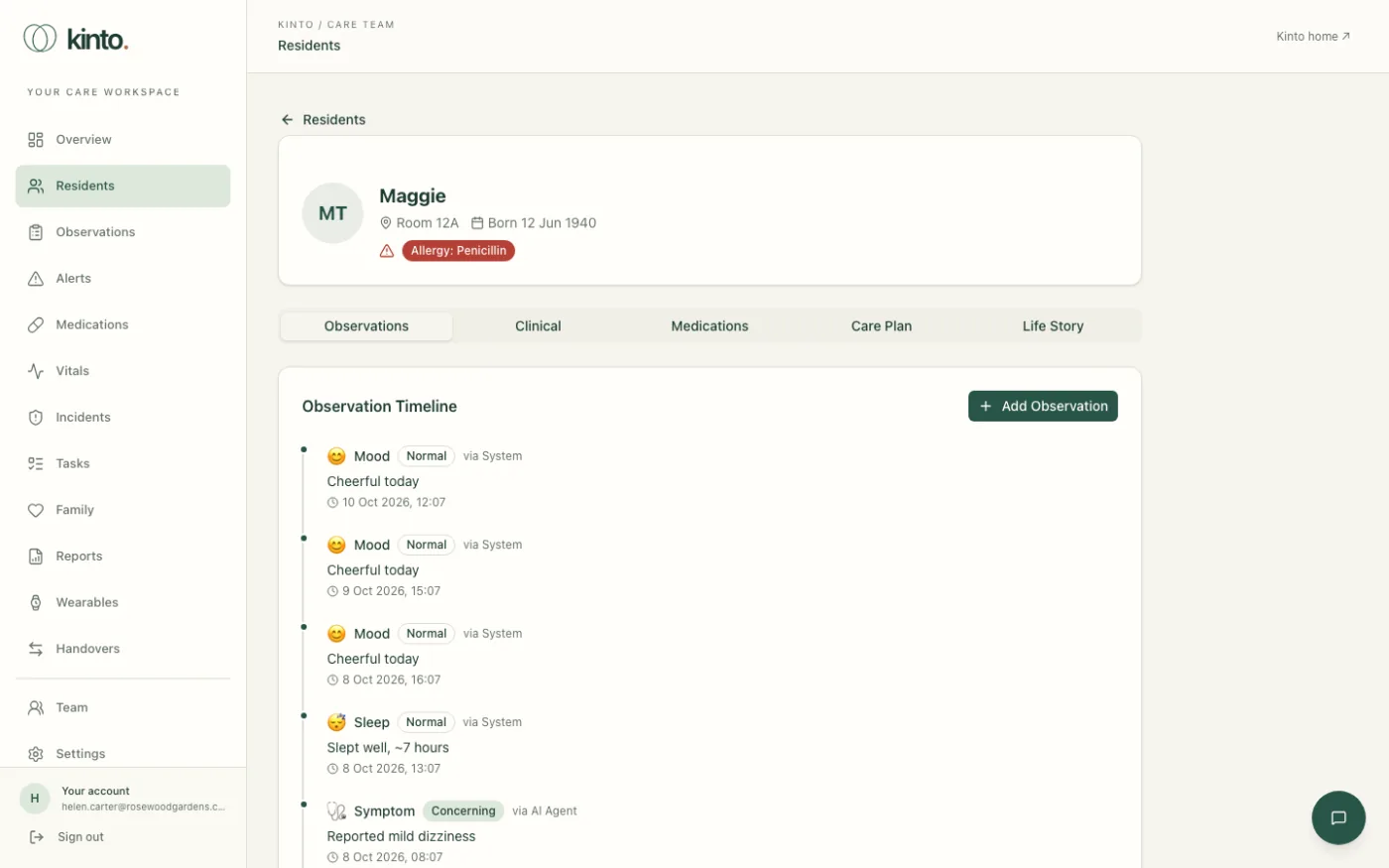
The top of the profile shows the resident’s name, room, date of birth and NHS number, and their latest NEWS2 score. Severe allergies are shown in red, for example Allergy: Penicillin, so they’re seen first. Select Residents above the name to go back to the list.
Below that are six tabs:
| Tab | What it shows |
|---|---|
| Observations | The Observation Timeline, newest first. Care staff can add an observation here. |
| Vitals | Sets of observations with their NEWS2 score. See Vitals and NEWS2. |
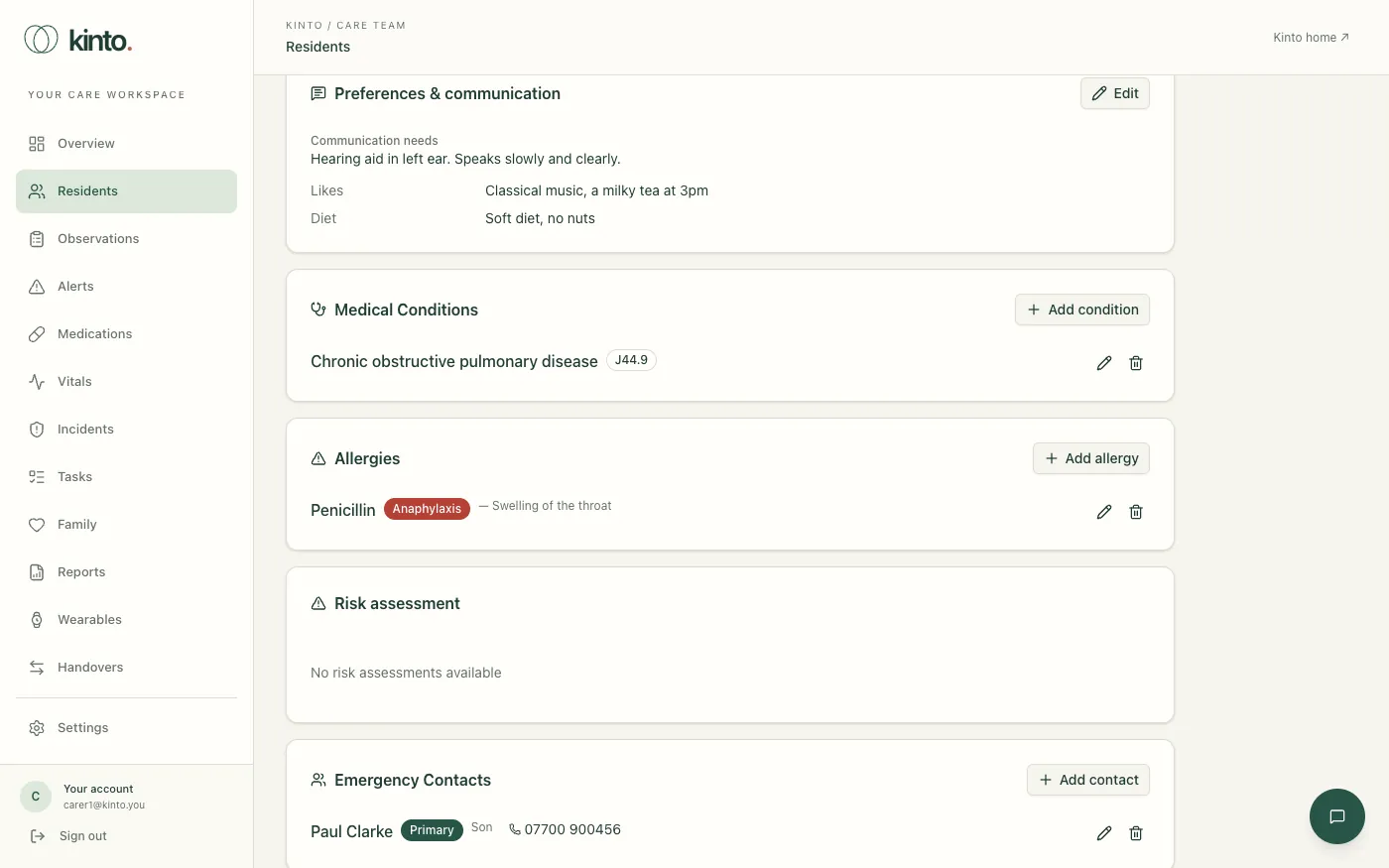
| Clinical | Preferences & communication, Medical Conditions, Allergies, Risk assessment and Emergency Contacts. |
| Medications | The resident’s Medication record (MAR) for the day, their Active Prescriptions and Active Treatments. |
| Care Plan | The care plan summary, when it’s due for review, and its Goals. |
| Life Story | Memories, family, hobbies, music and milestones. |
Edit a resident’s details
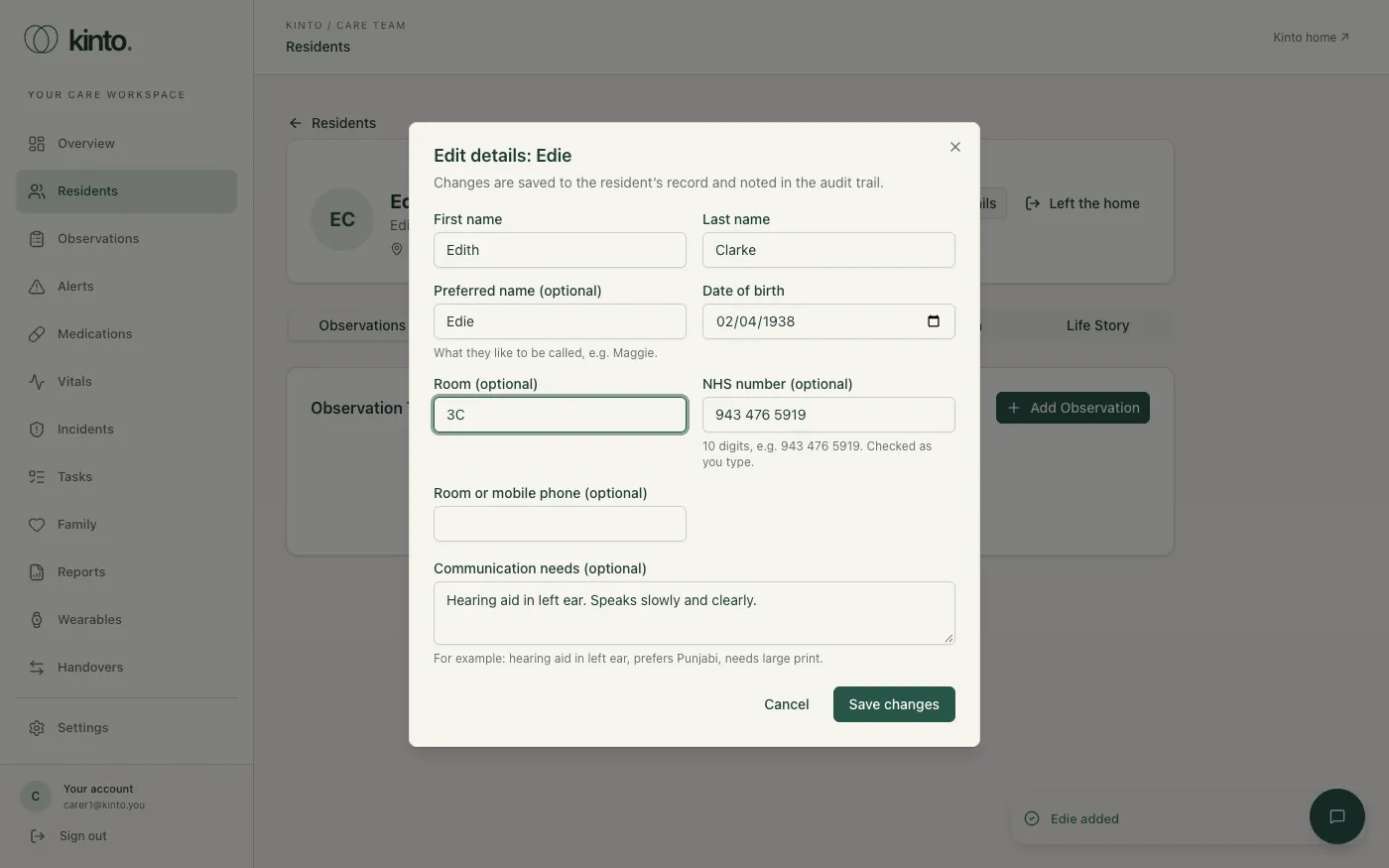
- Open the resident’s profile and select Edit details at the top right.
- Change what you need, for example their room.
- Select Save changes.
Allergies, conditions and emergency contacts
On the Clinical tab, each panel has an Add button, and each entry has a pencil to edit it and a bin to remove it.
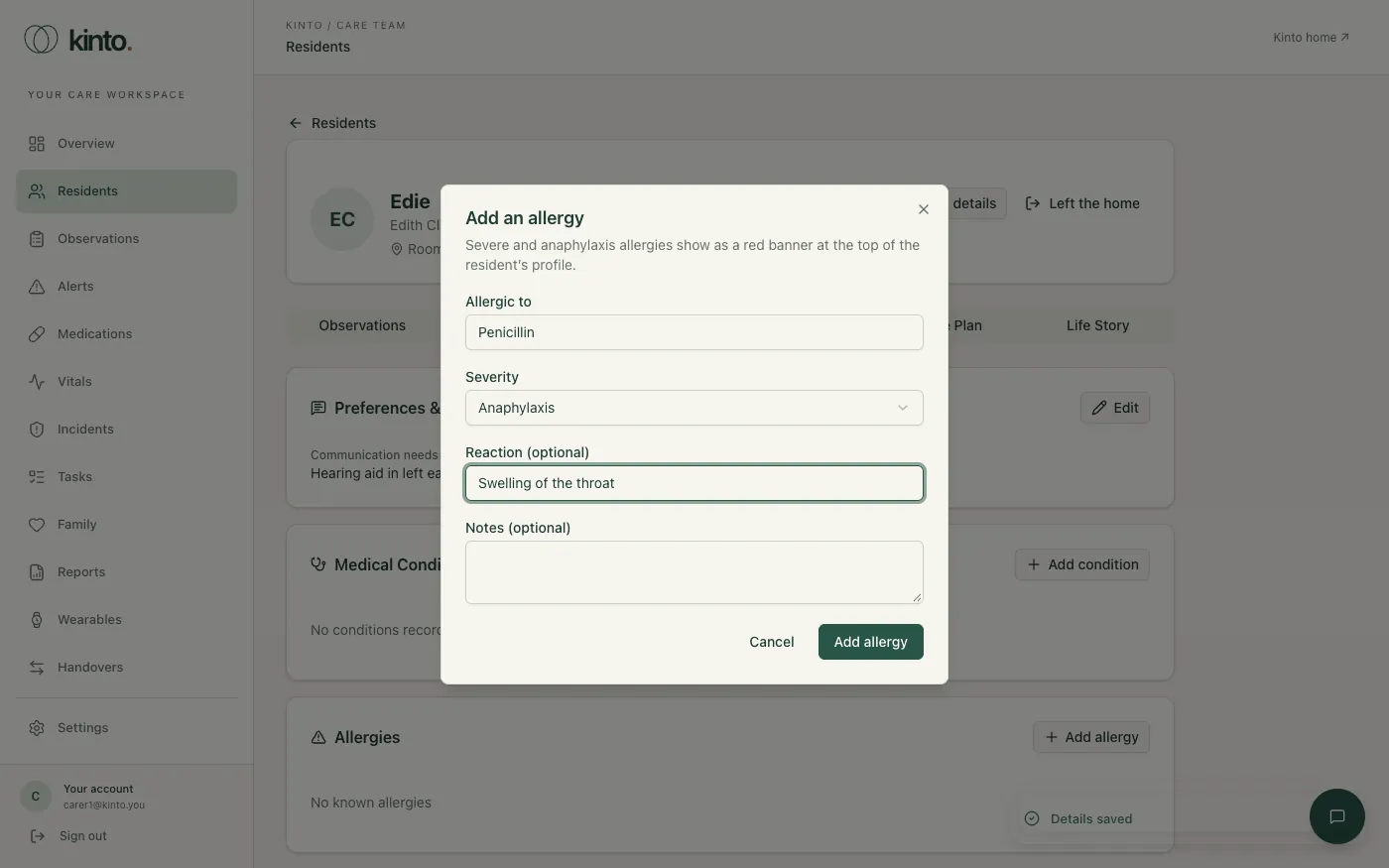
- Select Add allergy, enter what they’re allergic to, choose the severity (Mild, Moderate, Severe or Anaphylaxis) and the reaction, then select Add allergy.
- Select Add condition for a medical condition. The ICD-10 code is optional; if you enter one, Kinto checks its format (for example
E11.9). - Select Add contact for an emergency contact: name, relationship and phone are needed. Tick Main contact (call first) for the person to ring first; only one contact can be the main one.
Preferences and communication needs
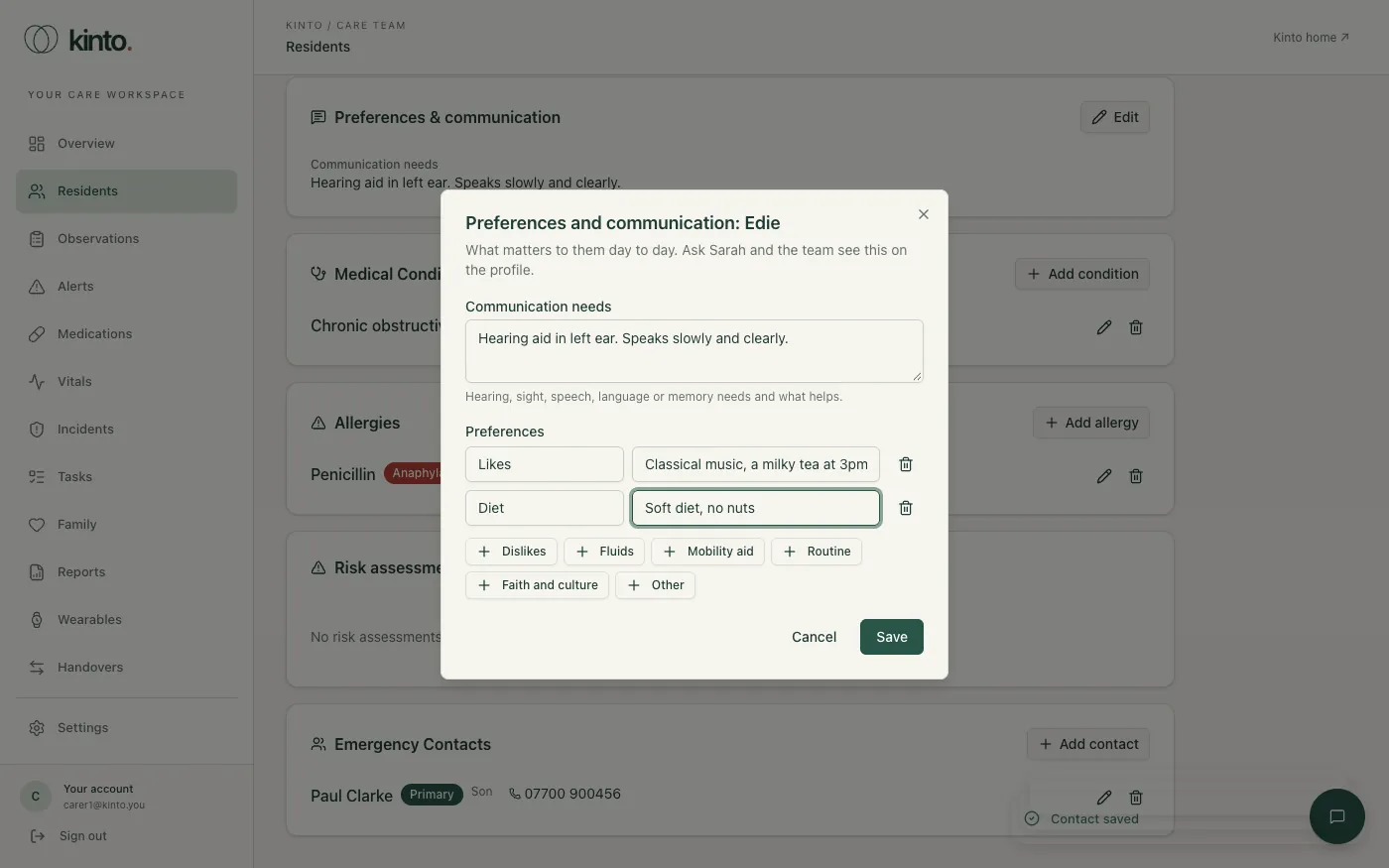
- On the Clinical tab, select Edit on Preferences & communication.
- Describe any Communication needs.
- Use the buttons such as Likes, Diet or Routine (or Other) to add a preference, and type the details next to it.
- Select Save.
Setting a resident up in the Sarah app
Residents can talk to Sarah on the Kinto app without an email address or password. They join with your home’s code, their name and their date of birth, which Kinto checks against their record here.
- Make sure their profile has a Date of birth. Without one they can’t join: add it with Edit details.
- Find the home code in Settings under Sarah app for residents, for example ROSE-7KQ4. Select Print poster for a large-print sheet with the code and the steps.
- Tell the resident: “Open Kinto, tap I live at a care home, enter this code, then say your name and date of birth.”
The Sarah app card on their profile shows whether they’ve joined and when they were last seen. Their first device joins straight away. For a new or second device, select Allow a new device: they then have 30 minutes to join on it. Turn off app access signs them out everywhere until someone allows a new device.
When a resident leaves the home
A resident’s record is never deleted when they leave: it has to be kept.
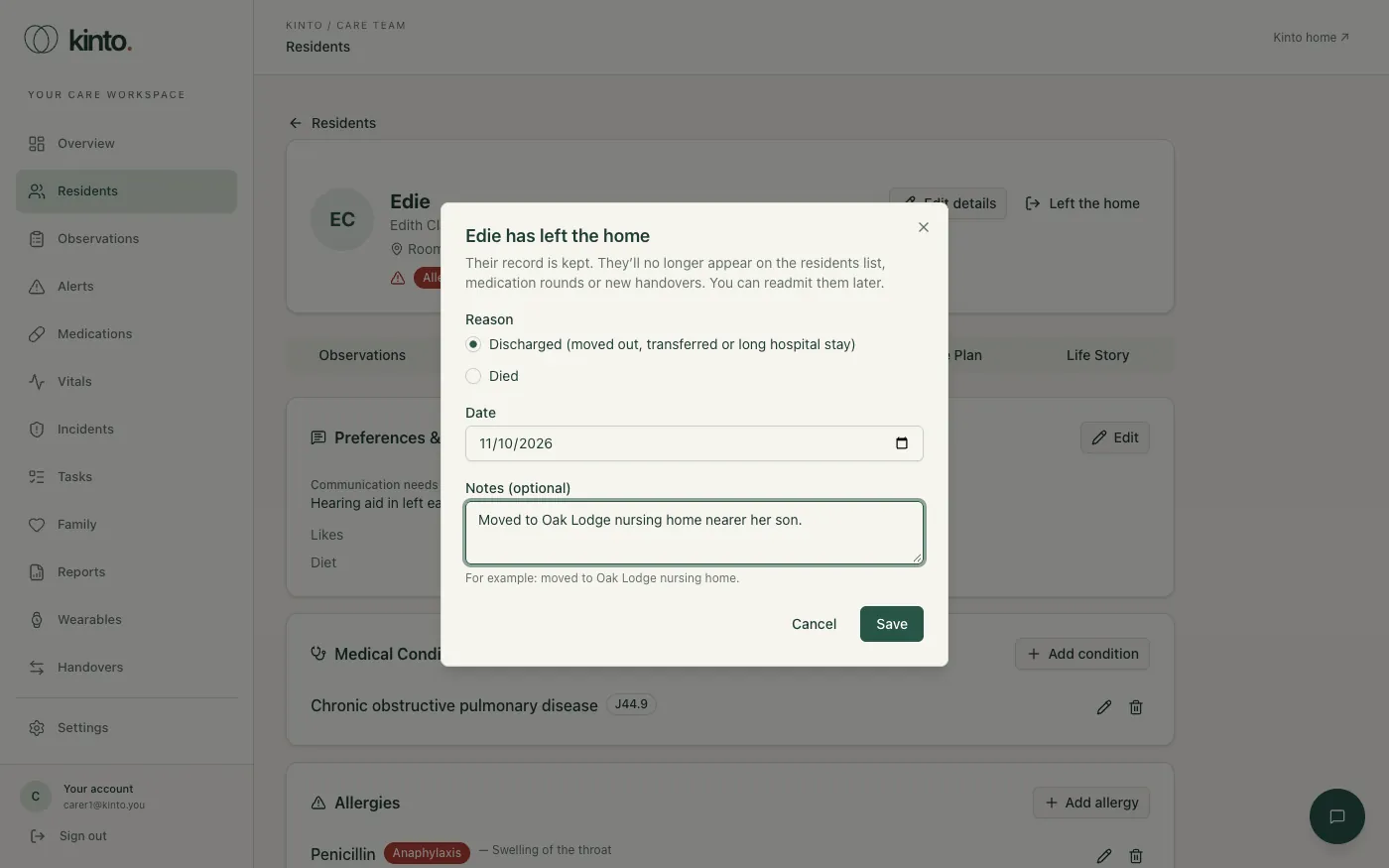
- Open their profile and select Left the home.
- Choose Discharged (moved out, transferred or a long hospital stay) or Died, check the date and add a note if useful.
- Select Save. They no longer appear on the residents list, medication rounds or new handovers.
If they come back, open their profile (filter the list to Discharged) and select Readmit. Only owners and admins can delete a resident’s record entirely.
Still stuck, or spotted something that doesn’t match what you see? Email support@kinto.you and tell us which page you were on. Please don’t include residents’ personal or medical details.