Help CentreGetting started for care organisations
Getting started for care organisations
For registered managers, owners and administrators setting Kinto up for a care home: what Kinto does, what we set up with you, and how to bring your team, residents and families on board.
What Kinto is (and what it isn’t)
Sarah, the care team workspace and the apps, in plain terms.
Kinto has two parts that work alongside the care you already give.
Sarah, the companion app
Sarah is an AI companion that residents can chat with, by typing or by voice, in the Kinto app on iPhone, iPad and Android. She’s there for everyday conversation: a chat about the garden, a question, some company in a quiet hour. She remembers what people tell her so conversations can pick up where they left off. On iPhone and iPad, residents can also talk to Sarah out loud and Sarah can ring them at times they ask for.
The care team workspace
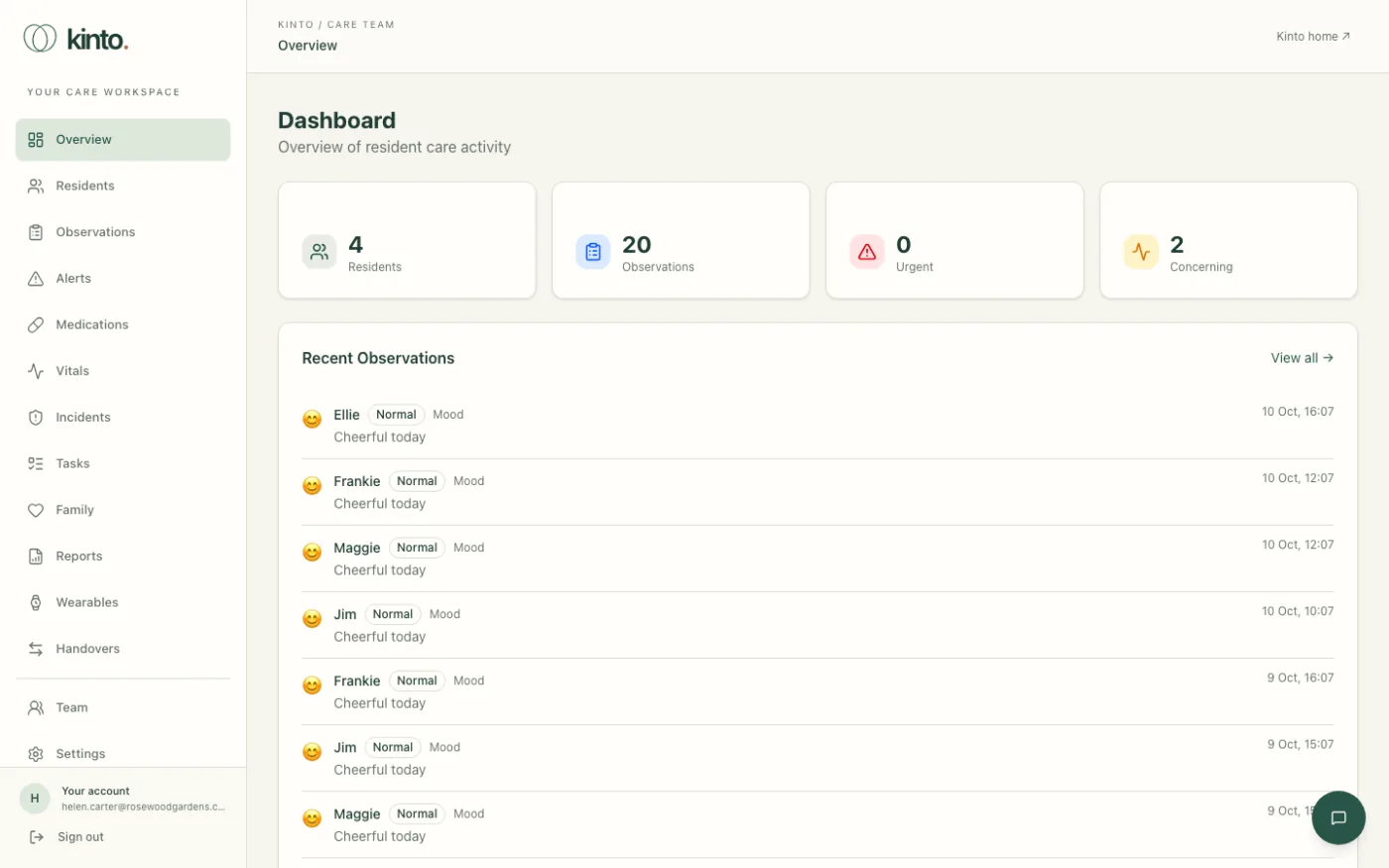
Your staff sign in at kinto.you/login to a secure workspace that brings together residents’ details, observations, alerts, medicines, vitals, incidents, care tasks, handovers and weekly reports. Carers can record observations by typing or dictating, and ask Ask Sarah, the care team assistant, quick questions such as which residents have medicines due.
What Kinto isn’t
- Not a person. Sarah is an AI. She can make mistakes, and residents should always know they’re talking to an AI.
- Not a medical or emergency service. Sarah doesn’t give medical advice, doesn’t monitor anyone and can’t call for help.
- Not a full care record system. Staff can add and update residents, record each dose on the medication round, enter observations with a NEWS2 score, report and close incidents, manage care tasks and sign off handovers, and every change is audited. Prescriptions and care plans are still set up by the Kinto team, and Kinto doesn’t replace your clinical systems or your duty to notify CQC. The Care team manual says exactly what each page can do.
- Not a replacement for people. Our motto is “AI supports conversation. People provide care.”
What the Kinto team sets up for you
Your organisation, your first owner account and your residents’ records.
Before your team can sign in, the Kinto team sets up a few things with you. There’s no self-service sign-up for care homes, so we’ll do this together during onboarding.
| We set up | What we need from you |
|---|---|
| Your organisation | The name of your care home or group, as you want staff to see it (for example “Rosewood Gardens”). |
| Your first owner account | The name and work email of the person who will run Kinto day to day, usually the registered manager. We recommend naming a second owner too. |
| Residents’ records | A list of residents to add: name, preferred name, room, date of birth, and any conditions, allergies, emergency contacts and care plan summary you’d like in Kinto. See Adding residents. |
| Data protection paperwork | A signed contract including a data processing agreement, and your data protection impact assessment (DPIA). See Data protection basics. |
| Optional features | Whether you want early-warning checks, family links and wearable devices, and which residents they apply to. |
What you do
- Sign in as the owner and set up two-factor authentication. See Your first sign-in as the owner.
- Invite your team from the Team page. See Inviting your team.
- Help residents and families who want to use the app. See Getting residents and families onto the app.
- Work through the Go-live checklist.
Your first sign-in as the owner
Accept your invitation, choose a password and turn on two-factor authentication.
As the owner you have full control of your organisation in Kinto, so your account is protected with two-factor authentication from the start. Allow ten minutes, at a computer, with your own smartphone to hand.
1. Get your sign-in details
The Kinto team creates your owner account and tells you how you’ll receive your first password. We’ll never send a password in the same email as your username. If you’ve been sent an invitation email instead, follow the link in it and choose your own password: the steps are the same as for any member of staff (see Setting up two-factor authentication the first time).
2. Install an authenticator app
On your phone, install Google Authenticator, Microsoft Authenticator or 1Password from the App Store or Google Play.
3. Sign in and turn on two-factor authentication
- Go to kinto.you/login and sign in with your email and password.
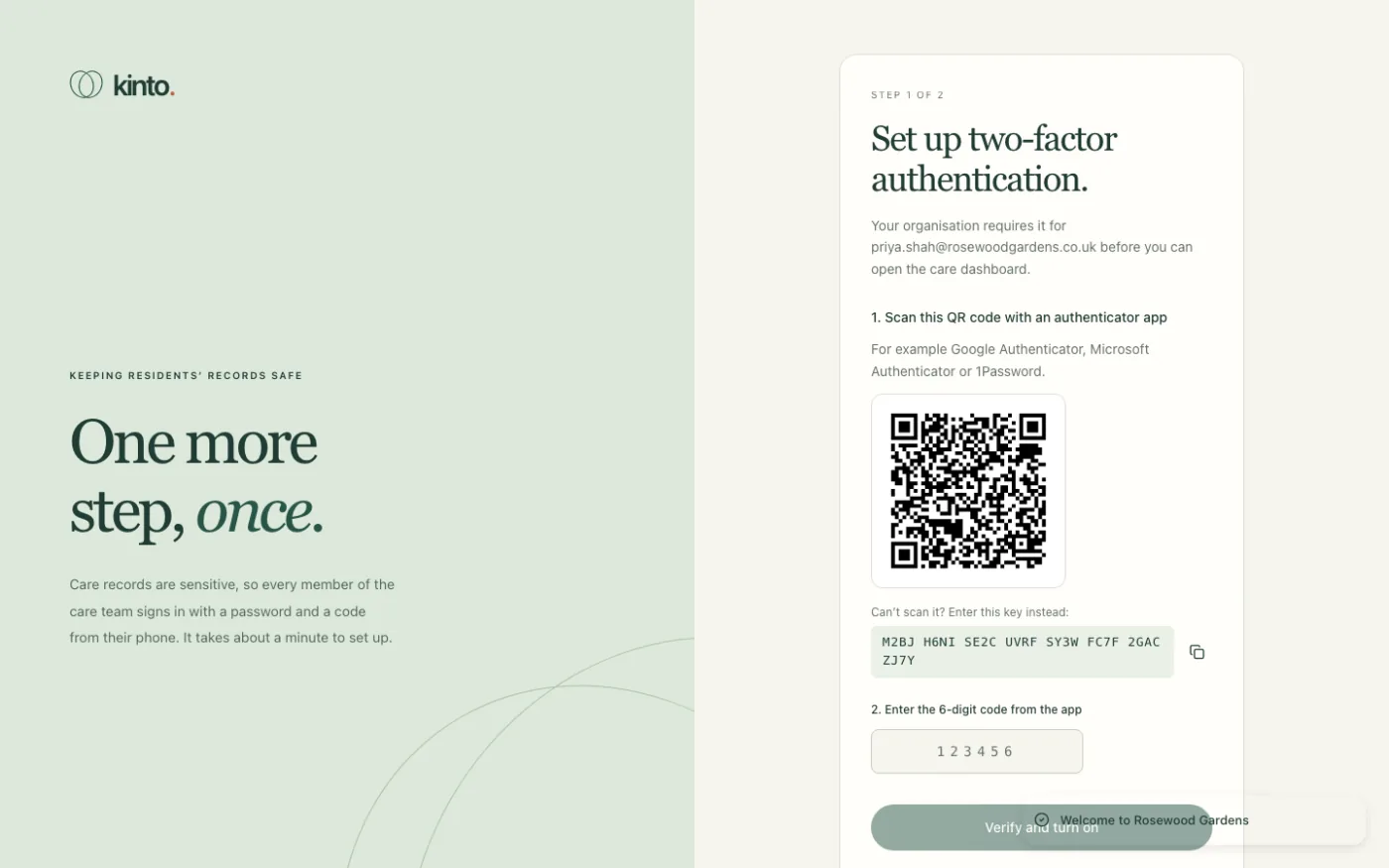
- You’ll see Set up two-factor authentication. Scan the QR code with your authenticator app.
- Type the 6-digit code the app shows and select Verify and turn on.
- Save your 10 recovery codes somewhere safe (a password manager, or printed and locked away), tick I have saved my recovery codes and select Go to the dashboard.
4. Choose your own password
If we gave you a temporary password, change it now: open Settings, and under Change password type the temporary password and then your new one twice. See Your account and security settings.
5. Check your organisation
- Open Residents and check the residents we added are correct.
- Open Team. You’ll see yourself marked Owner with 2FA on.
Inviting your team and choosing roles
Who should be an owner, admin, carer or viewer, and how to invite them.
Staff join your workspace by email invitation only: there’s no public sign-up. Owners and admins send invitations from the Team page, and each person chooses their own password and sets up two-factor authentication.
Choose the right role
| Role | Who it’s for | What they can do |
|---|---|---|
| Owner | Registered manager, nominated individual | Everything, including managing other owners. Two-factor required. |
| Admin | Deputy manager, senior nurse, administrator | Manages the team (but not owners) and all care records. Two-factor required. |
| Carer | Nurses, senior carers, care assistants | Reads and writes care records and uses Ask Sarah. Two-factor required. |
| Viewer | Visiting GP, auditor, trainee shadowing | Reads care records but can’t change anything. Two-factor optional (recommended). |
| Family member | Relatives | No access to the care team workspace. Only use this for family links (see below). |
Give people the lowest role that lets them do their job. You can change a role at any time.
Send an invitation
- Open Team in the menu and select Invite staff.
- Type their Work email and choose a Role.
- Select Send invitation.
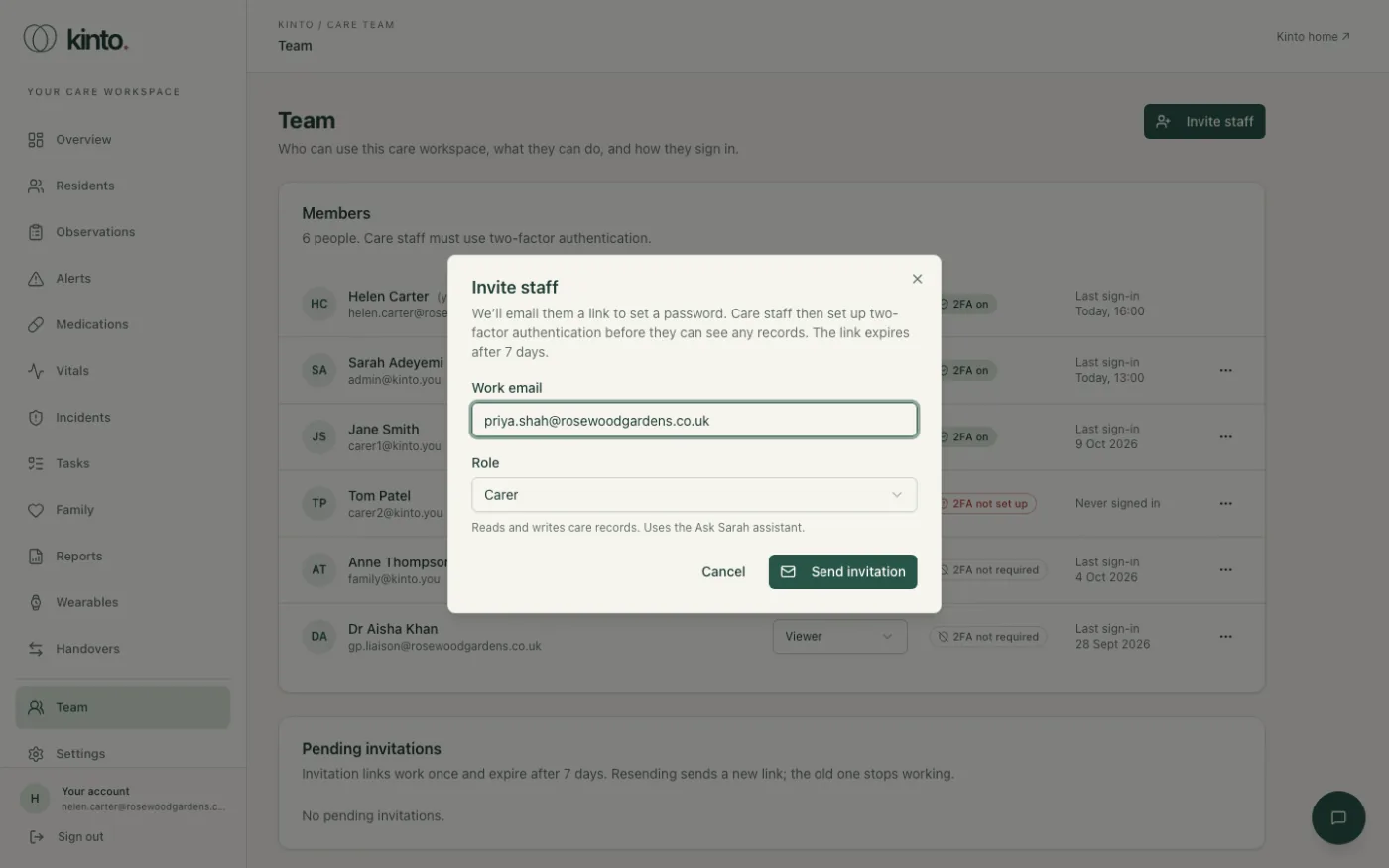
They’ll get an email from Kinto with a link that works once and expires after 7 days. You can see who hasn’t accepted yet under Pending invitations, and Resend or Revoke from there. Full details: Managing your team.
Help your team get started
- Ask everyone to install an authenticator app on their own phone before their first session.
- Give new starters ten minutes at a computer to accept the invitation and set up two-factor authentication.
- Agree where staff keep their recovery codes. If your policy doesn’t allow personal phones, talk to us about options before go-live.
- Share the Care team manual. Each guide has a printable version.
- Check the Team page a week later: anyone showing 2FA not set up or Never signed in may need a hand.
Adding residents
Adding residents in the workspace, and what the Kinto team still sets up.
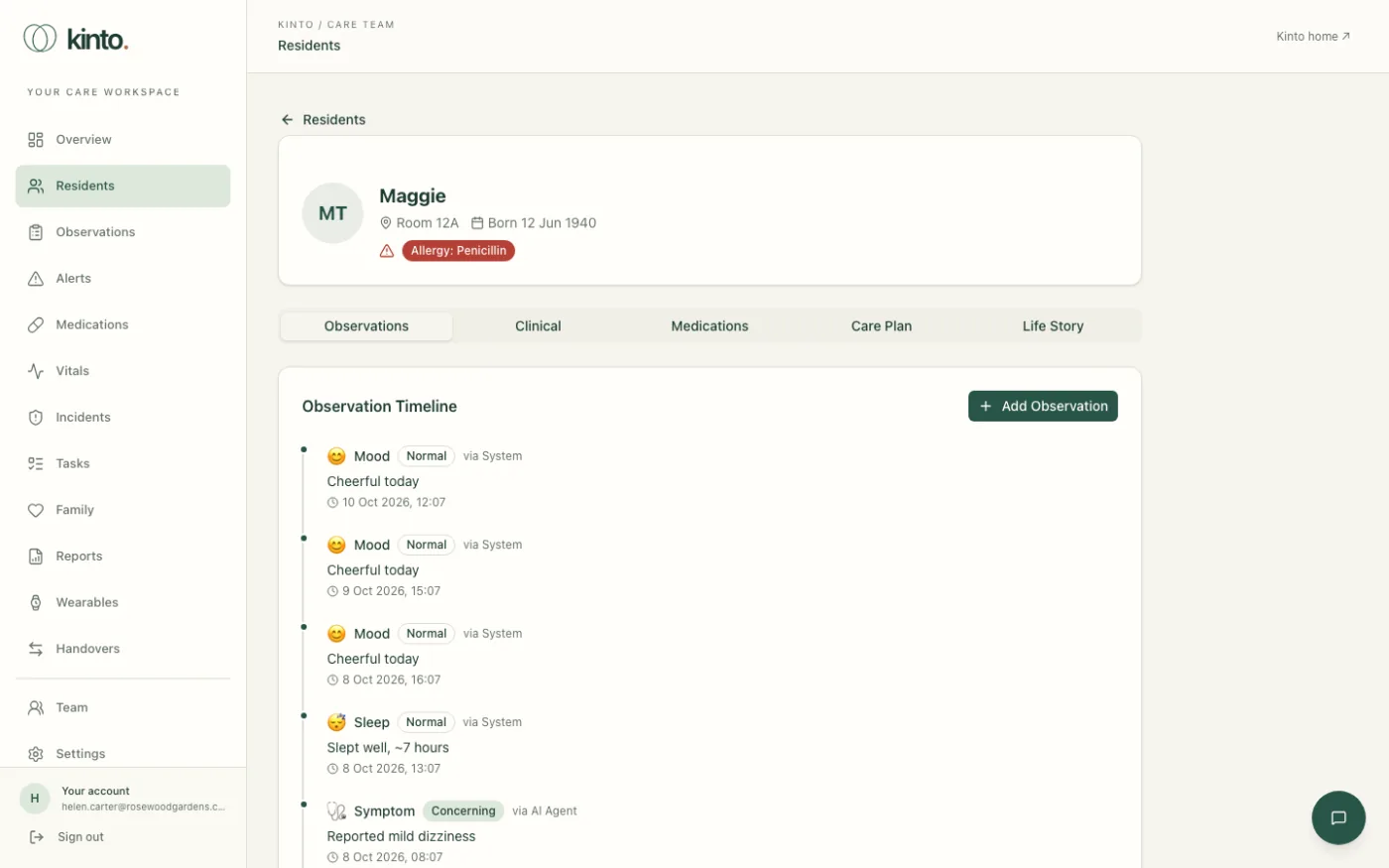
Residents appear on the Residents page and each has a profile with observations, clinical details, medicines, a care plan and a life story.
Add residents yourself
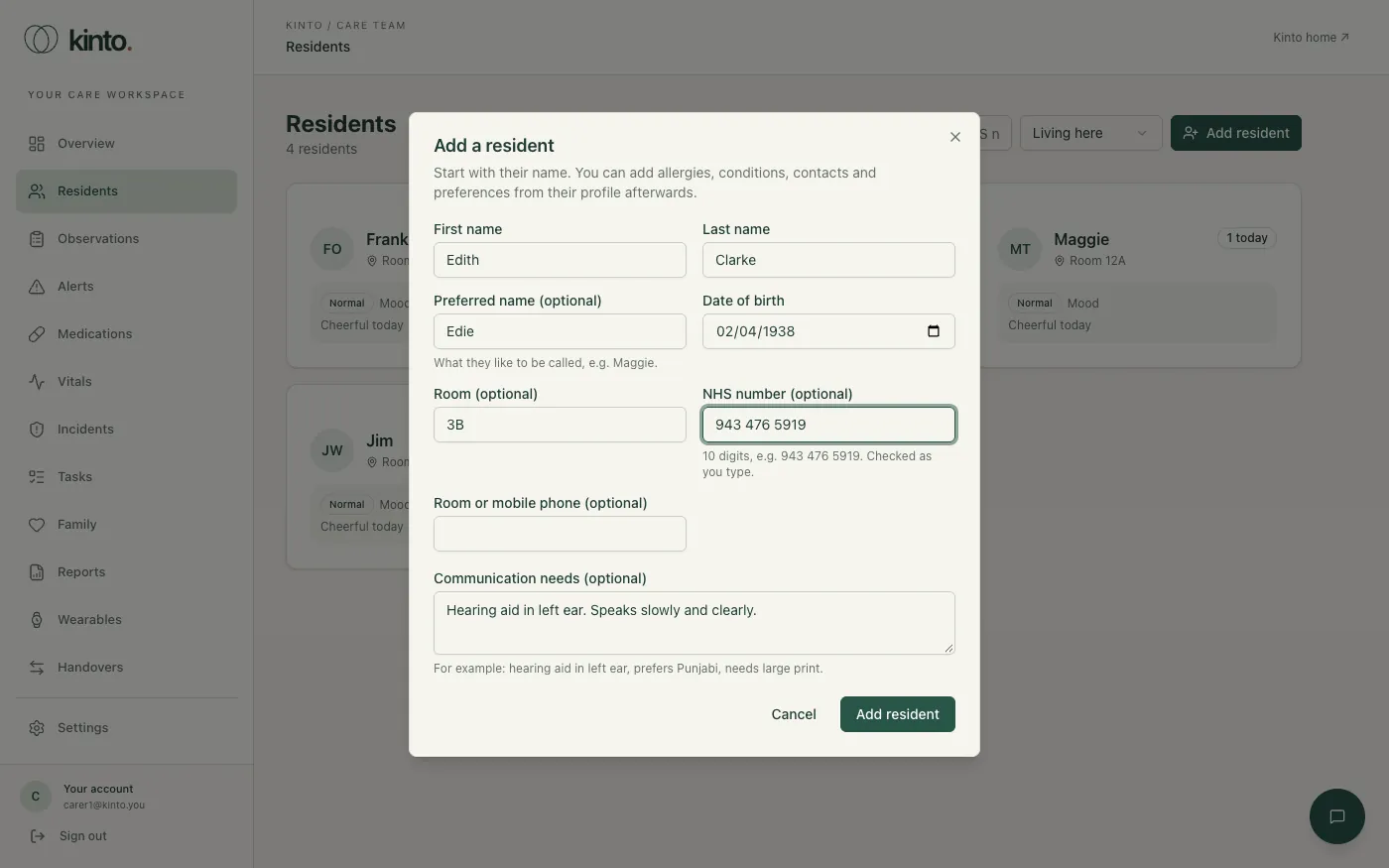
Owners, admins and carers can add residents in the workspace: on Residents, select Add resident, enter their name, date of birth, room and (optionally) NHS number, then add allergies, conditions, emergency contacts and preferences from their profile. See Residents and the resident profile.
What the Kinto team sets up
Prescriptions (which drive the medication round), care plans and life stories are still added by us. For a whole home, we can also load your residents for you.
- Collect the details you need us to add (see below). Only include what you need for each resident’s care.
- Email support@kinto.you and we’ll agree a secure way to send them. Never send resident details in an ordinary email.
- We’ll confirm when they’re added. Check each profile and tell us about anything that needs correcting.
What we can add for each resident
| Where it shows | Details |
|---|---|
| Header | First and last name, preferred name (shown everywhere), room number, date of birth, phone number. Severe allergies show as a red badge. |
| Clinical tab | Medical conditions (with ICD-10 codes if you have them), allergies and severity, emergency contacts. |
| Medications tab | Active prescriptions (dose, frequency, prescriber) and treatments such as physio or wound care. |
| Care Plan tab | A summary, review date and goals. |
| Life Story tab | Hobbies, music, family, milestones and stories, which help staff (and Sarah) start good conversations. |
When someone leaves or passes away
Open their profile and select Left the home. The record is kept, and they drop off the residents list, medication rounds and handovers. Only owners and admins can delete a record entirely; tell us if you need help applying your retention policy.
Once residents are in, your team records observations from each resident’s profile. See Residents and the resident profile.
Getting residents and families onto the app
Downloading the app, creating an account and helping someone get started.
Residents and their families use the free Kinto app to chat and talk with Sarah. They create their own account in the app with an email address and password: no invitation is needed.
The app works on iPhone and iPad (iOS 18.2 or later) and Android phones and tablets (Android 10 or later). Talking to Sarah out loud, calls from Sarah and Siri are on iPhone and iPad only for now. On Android, people type or dictate and Sarah can read her replies aloud.
Helping a resident get started
- Check the resident would like to try it, and that they understand Sarah is an AI and not a person. If they lack capacity to decide, follow your usual best-interests process.
- Install Kinto on their device (or a device your home provides) from the App Store or Google Play.
- Go through the welcome screens with them. On iPhone and iPad they must tick the agreement and choose Agree and continue: read it through together.
- Create the account with an email address the resident (or their representative) controls, and help them choose a password. Don’t use a shared staff email.
- Show them how to type a message, how to use the microphone and how to turn spoken replies on or off.
- Leave them a printed copy of the iPhone and iPad guide or Android guide.
Relatives
- Relatives can download the app and chat with Sarah themselves. It’s a good way for them to see what their family member is using.
- The questions from residents and families page answers the things relatives ask most. Feel free to share the link: kinto.you/help/families.
- For news about a resident, relatives should contact your home as they do now.
Data protection basics
Who is responsible for what, and where to find the privacy policy and terms.
Kinto holds sensitive information about the people in your care. Here are the basics. They don’t replace legal advice or your own data protection policies.
Who is responsible for what
- Care records in the workspace (residents’ details, observations, medicines, incidents and so on) belong to your care home. You’re the controller; Kinto is your processor and only uses them on your instructions, under a data processing agreement.
- App accounts and conversations with Sarah belong to the person using the app. Kinto is the controller for those. Our privacy policy explains what we collect, which providers process it and how long we keep it.
Before you go live
- Sign our contract and data processing agreement.
- Complete or update your data protection impact assessment (DPIA) to cover Kinto and AI conversation. We can share information to help.
- Update your privacy notice for residents and families to mention Kinto.
- Agree how long records should be kept, and what happens to them if you stop using Kinto.
Every day
- Only invite people who need access, with the lowest role that works. Remove leavers on their last day.
- Everyone uses their own account. Never share passwords, codes or recovery codes.
- Record facts, not opinions, and only what’s needed for care.
- Never email residents’ details to Kinto support. Describe the page and the problem instead.
- If you think there’s been a data breach, follow your breach procedure and email support@kinto.you straight away.
Where to find our policies
Go-live checklist
Everything to tick off before your first shift with Kinto.
Work through this list with your Kinto contact before your first shift with Kinto. Print it from the printable version of this guide.
Paperwork
- ☐ Contract and data processing agreement signed.
- ☐ DPIA completed or updated; privacy notice updated.
- ☐ Staff told about Kinto, including that Sarah is an AI and what she can’t do.
Accounts
- ☐ Owner signed in, two-factor authentication on, recovery codes stored safely.
- ☐ A second owner (or at least one admin) set up.
- ☐ All staff invited with the right role.
- ☐ Team page checked: everyone shows 2FA on (or 2FA not required for viewers).
- ☐ A plan for staff who lose their phone: who can reset two-factor out of hours.
Residents
- ☐ Resident list sent to Kinto securely and checked on the Residents page.
- ☐ Severe allergies showing correctly on each profile.
- ☐ Residents who’d like to use the app have agreed, and their app is set up.
Ways of working
- ☐ Agreed what staff record in Kinto (observations) and what stays in your existing systems (medicines administration, incidents, vitals, care plans).
- ☐ Agreed who checks Alerts each shift and what “acknowledge” means in your home.
- ☐ Agreed how handovers use Kinto’s summary alongside your usual handover.
- ☐ Everyone knows Kinto doesn’t monitor residents or call for help, and that emergencies follow your usual procedures and 999.
- ☐ Staff know where the Care team manual is, and printed copies are in the office.
- ☐ Everyone knows how to contact Kinto support: support@kinto.you.