Staff join your workspace by email invitation only: there’s no public sign-up. Owners and admins send invitations from the Team page, and each person chooses their own password and sets up two-factor authentication.
Choose the right role
| Role | Who it’s for | What they can do |
|---|---|---|
| Owner | Registered manager, nominated individual | Everything, including managing other owners. Two-factor required. |
| Admin | Deputy manager, senior nurse, administrator | Manages the team (but not owners) and all care records. Two-factor required. |
| Carer | Nurses, senior carers, care assistants | Reads and writes care records and uses Ask Sarah. Two-factor required. |
| Viewer | Visiting GP, auditor, trainee shadowing | Reads care records but can’t change anything. Two-factor optional (recommended). |
| Family member | Relatives | No access to the care team workspace. Only use this for family links (see below). |
Give people the lowest role that lets them do their job. You can change a role at any time.
Send an invitation
- Open Team in the menu and select Invite staff.
- Type their Work email and choose a Role.
- Select Send invitation.
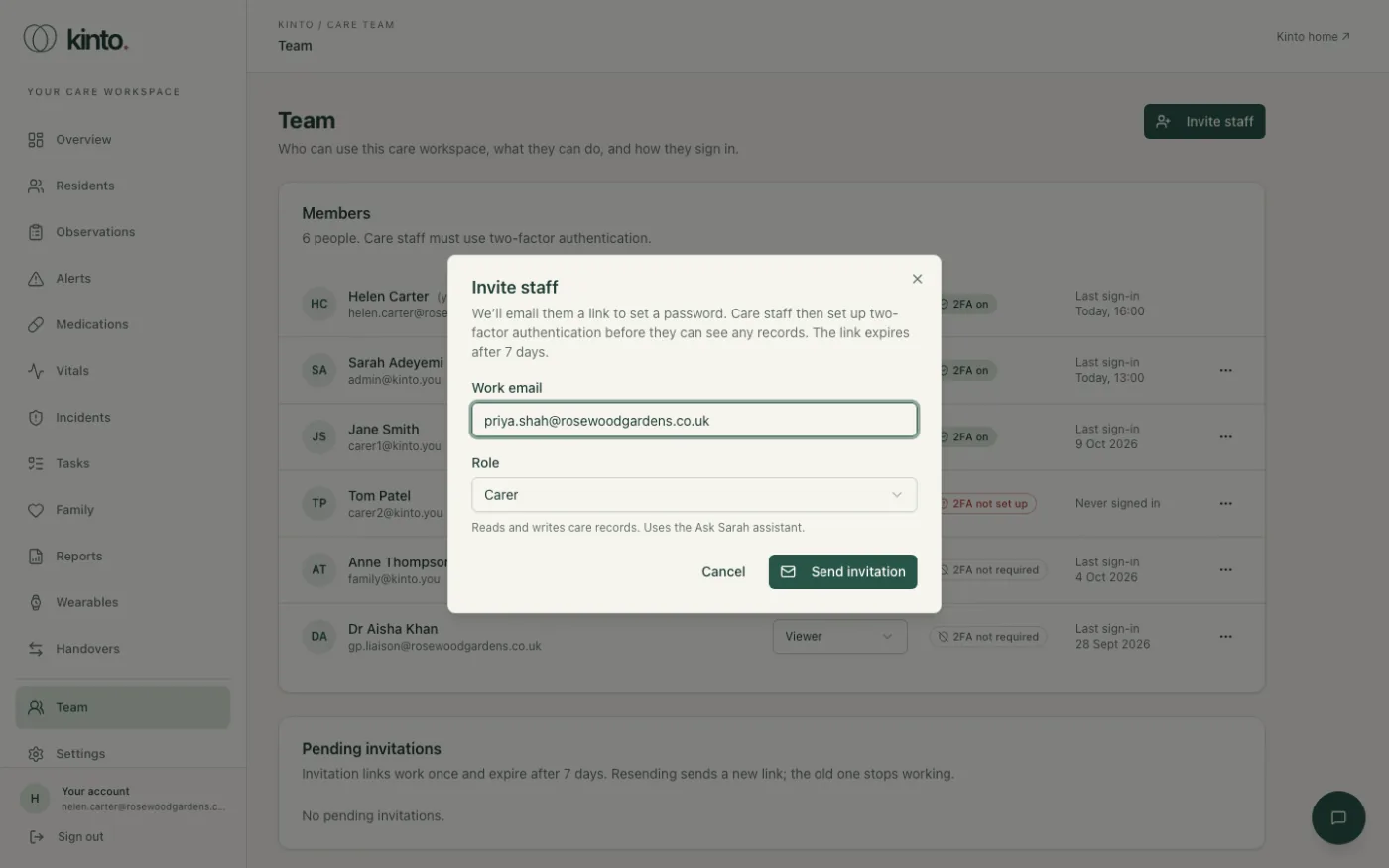
They’ll get an email from Kinto with a link that works once and expires after 7 days. You can see who hasn’t accepted yet under Pending invitations, and Resend or Revoke from there. Full details: Managing your team.
Help your team get started
- Ask everyone to install an authenticator app on their own phone before their first session.
- Give new starters ten minutes at a computer to accept the invitation and set up two-factor authentication.
- Agree where staff keep their recovery codes. If your policy doesn’t allow personal phones, talk to us about options before go-live.
- Share the Care team manual. Each guide has a printable version.
- Check the Team page a week later: anyone showing 2FA not set up or Never signed in may need a hand.
Still stuck, or spotted something that doesn’t match what you see? Email support@kinto.you and tell us which page you were on. Please don’t include residents’ personal or medical details.