As the owner you have full control of your organisation in Kinto, so your account is protected with two-factor authentication from the start. Allow ten minutes, at a computer, with your own smartphone to hand.
1. Get your sign-in details
The Kinto team creates your owner account and tells you how you’ll receive your first password. We’ll never send a password in the same email as your username. If you’ve been sent an invitation email instead, follow the link in it and choose your own password: the steps are the same as for any member of staff (see Setting up two-factor authentication the first time).
2. Install an authenticator app
On your phone, install Google Authenticator, Microsoft Authenticator or 1Password from the App Store or Google Play.
3. Sign in and turn on two-factor authentication
- Go to kinto.you/login and sign in with your email and password.
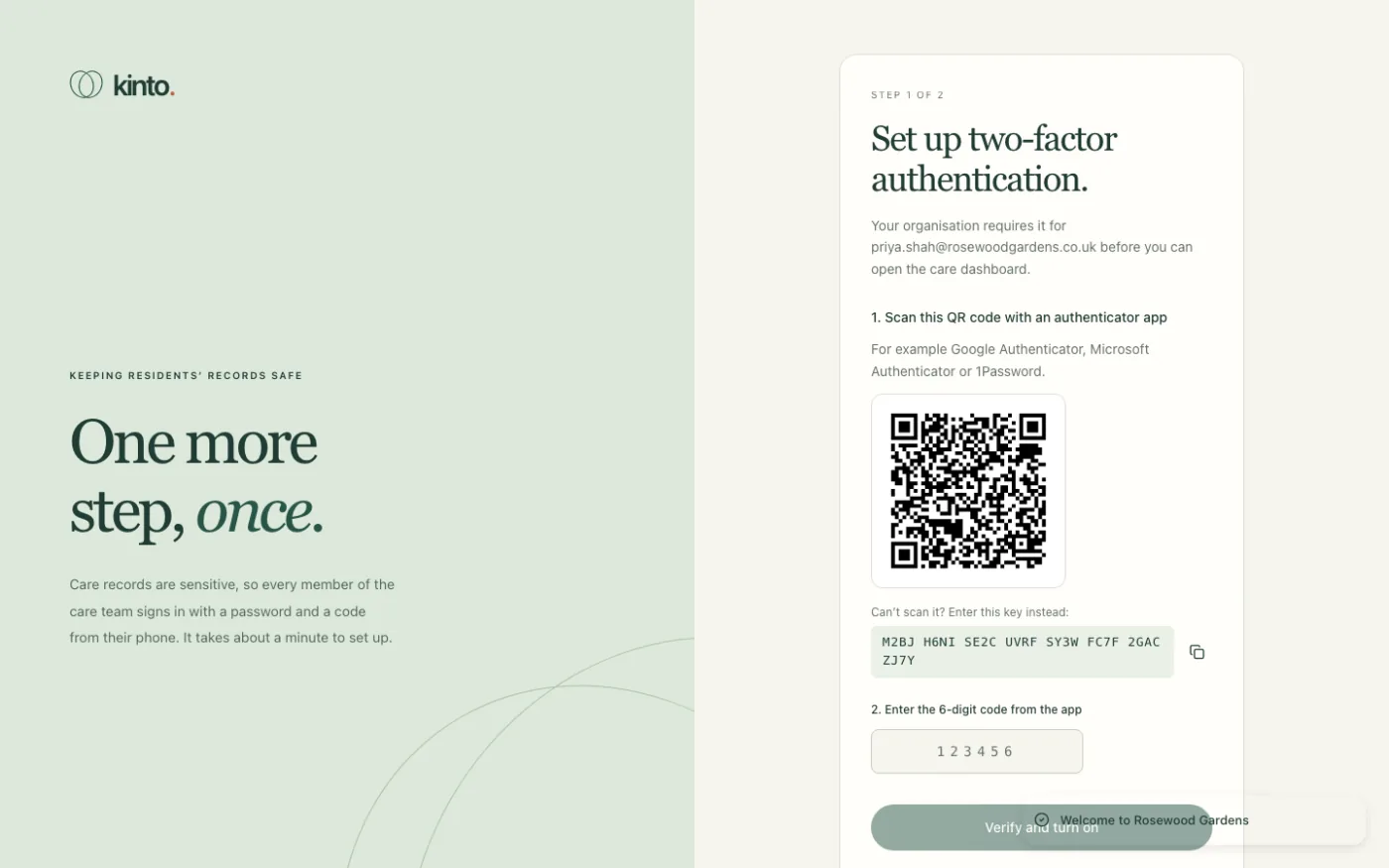
- You’ll see Set up two-factor authentication. Scan the QR code with your authenticator app.
- Type the 6-digit code the app shows and select Verify and turn on.
- Save your 10 recovery codes somewhere safe (a password manager, or printed and locked away), tick I have saved my recovery codes and select Go to the dashboard.
4. Choose your own password
If we gave you a temporary password, change it now: open Settings, and under Change password type the temporary password and then your new one twice. See Your account and security settings.
5. Check your organisation
- Open Residents and check the residents we added are correct.
- Open Team. You’ll see yourself marked Owner with 2FA on.
Still stuck, or spotted something that doesn’t match what you see? Email support@kinto.you and tell us which page you were on. Please don’t include residents’ personal or medical details.