Kinto is a free app that lets you chat with Sarah, a friendly AI companion. This page takes you from downloading the app to saying your first hello. It takes about five minutes.
What you need
- An Android phone or tablet with Android 10 or later. To check, open Settings → About phone → Android version (the exact names vary a little between phone makers).
- An internet connection (Wi-Fi or mobile data).
- An email address you can open, for your Kinto account.
1. Install the app
Kinto will be on Google Play as Kinto: Sarah, AI companion. Open the Play Store, tap the search bar, type Kinto and tap Install. The app is free, with no adverts and no in-app purchases.
When it has installed, tap Open, or tap the Kinto icon on your home screen.
2. Read the welcome screens
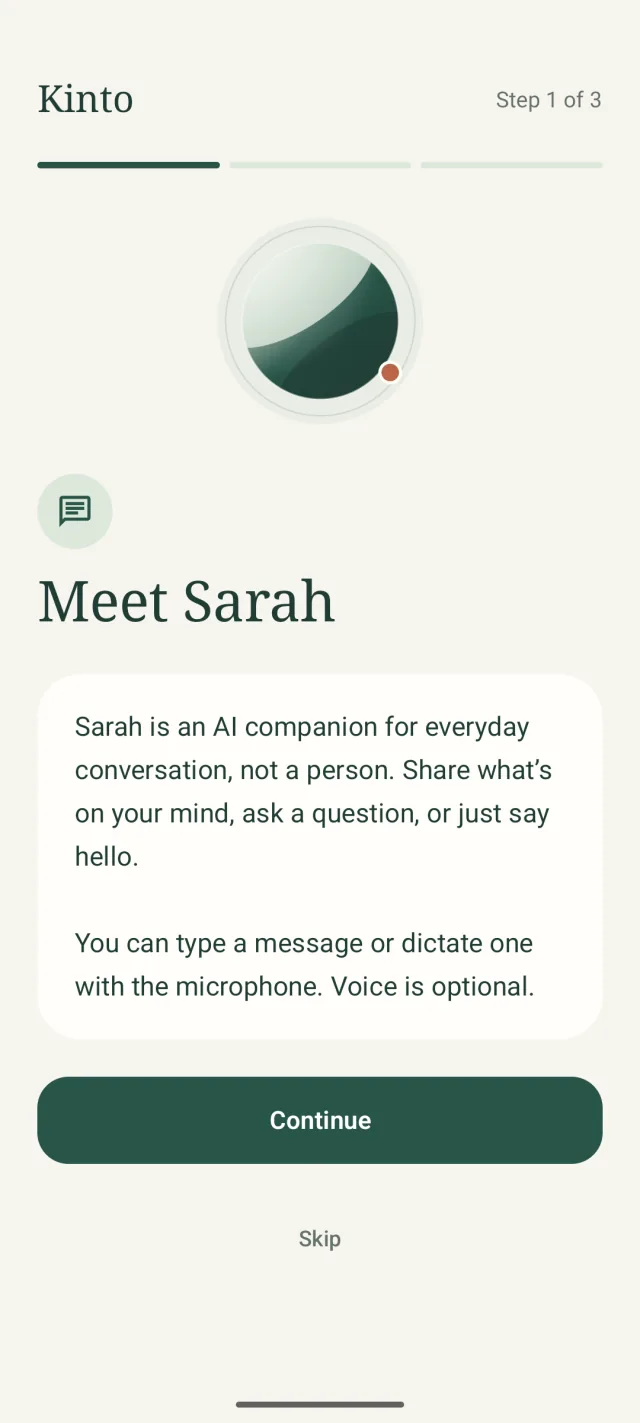
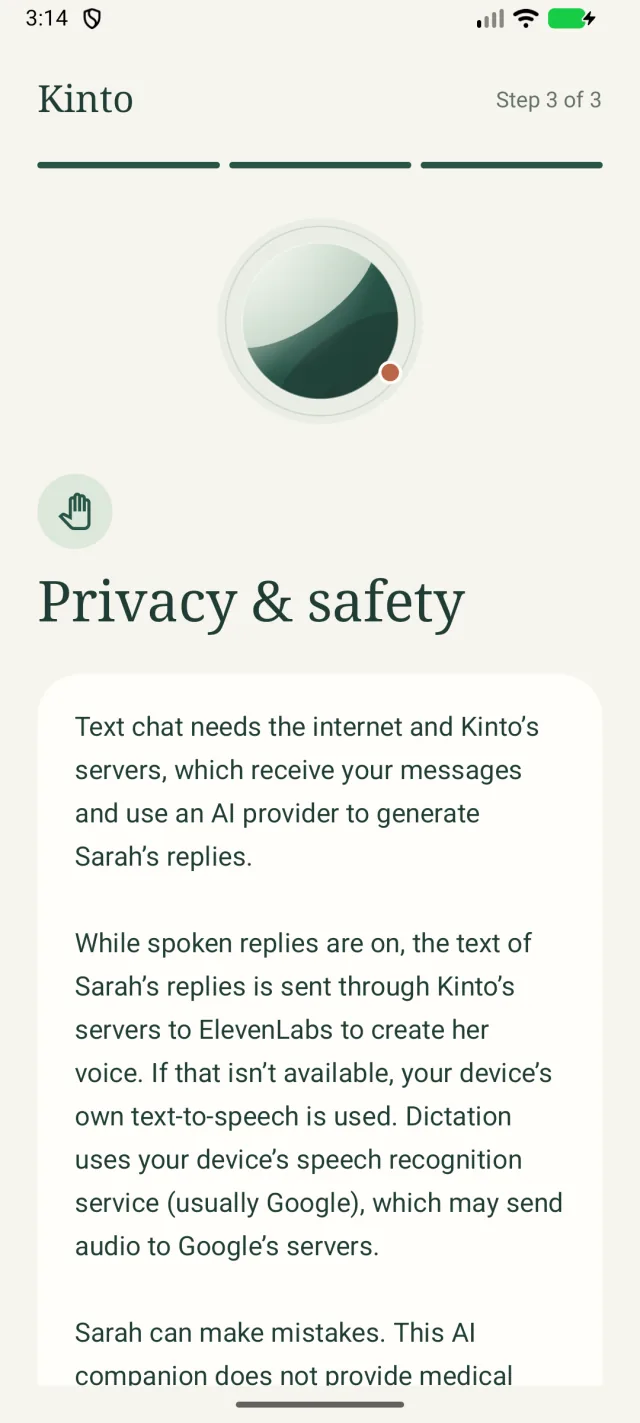
Three short screens introduce Sarah: Meet Sarah, Talk or type and Privacy & safety. Tap Continue to move on, and Get started on the last one. The last screen explains where your messages go and has a link, Read our privacy policy. Please read it, or ask a family member to read it with you. You can tap Skip, and see the screens again later from Settings.
3. Agree to how Kinto works
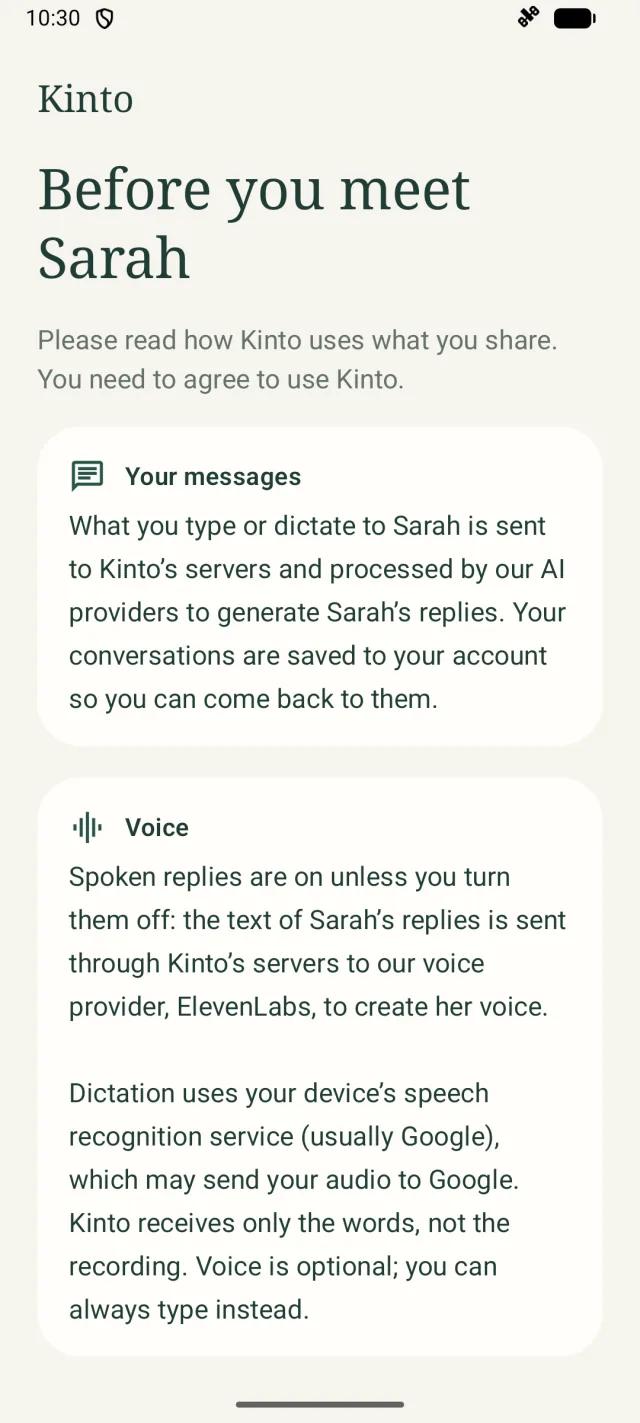
Next you’ll see Before you meet Sarah. It explains, in three short cards, what happens to Your messages, how Voice works on Android, and that Sarah is an AI. In short:
- What you type or dictate goes to Kinto’s servers, and our AI providers use it to write Sarah’s replies.
- While spoken replies are on, the text of Sarah’s replies goes through Kinto to our voice provider, ElevenLabs, to create her voice.
- Dictation uses your phone’s own speech recognition (usually Google’s). Kinto receives only the words, not the recording.
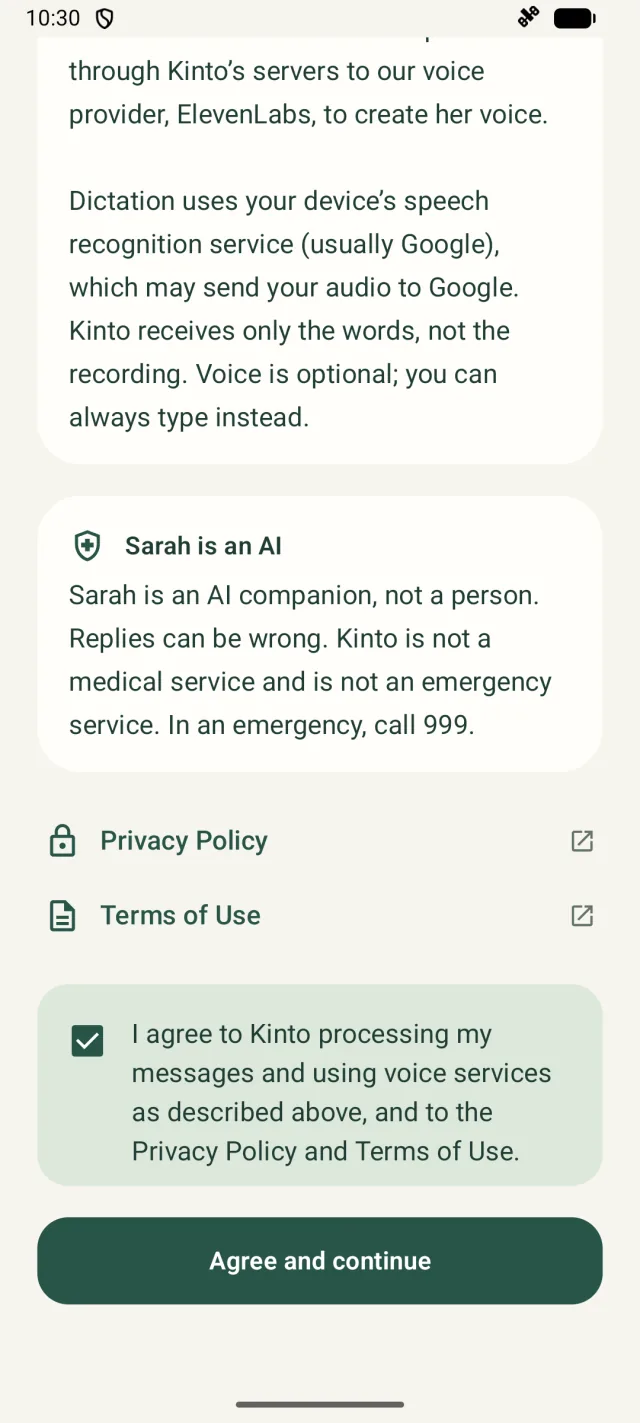
- Sarah isn’t a medical or emergency service. In an emergency, call 999.
Take your time to read it, or ask a family member to read it with you.
- Scroll down. You can open the Privacy Policy and Terms of Use to read them in full.
- Tap the box next to I agree to Kinto processing my messages and using voice services as described above, and to the Privacy Policy and Terms of Use. A tick appears.
- Tap Agree and continue. (It can’t be tapped until the box is ticked.)
4. Create your account, or sign in
Anyone can create a Kinto account in the app. You don’t need an invitation. If you’ve used Kinto before, on any phone, sign in with the same email and password.
New to Kinto
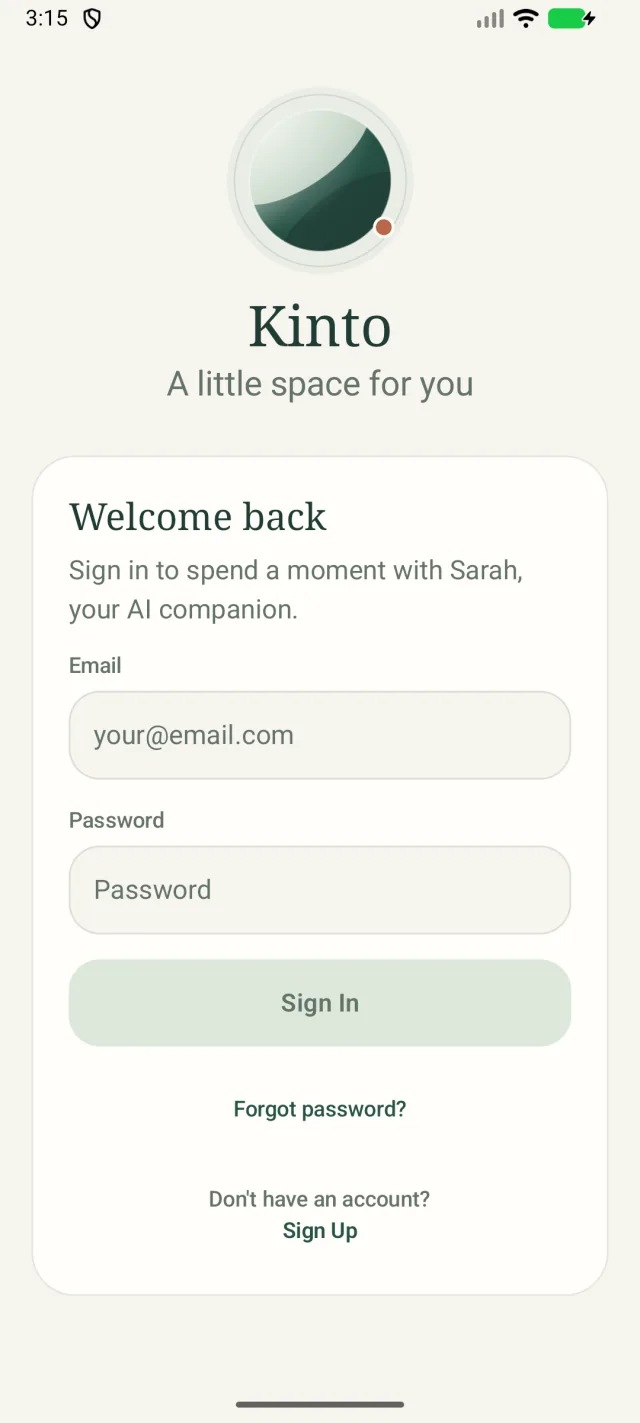
- Under Don’t have an account?, tap Sign Up. You’ll see Make yourself at home.
- Type your Email.
- Choose a Password of at least 8 characters, and type it again in Confirm Password.
- Tap Create Account. You’re signed in straight away.
Before you create an account, please read the privacy policy and the terms of use. They explain how Kinto handles your information.
Already have an account
- Under Welcome back, type your Email and Password.
- Tap Sign In.
If you’re asked for a code
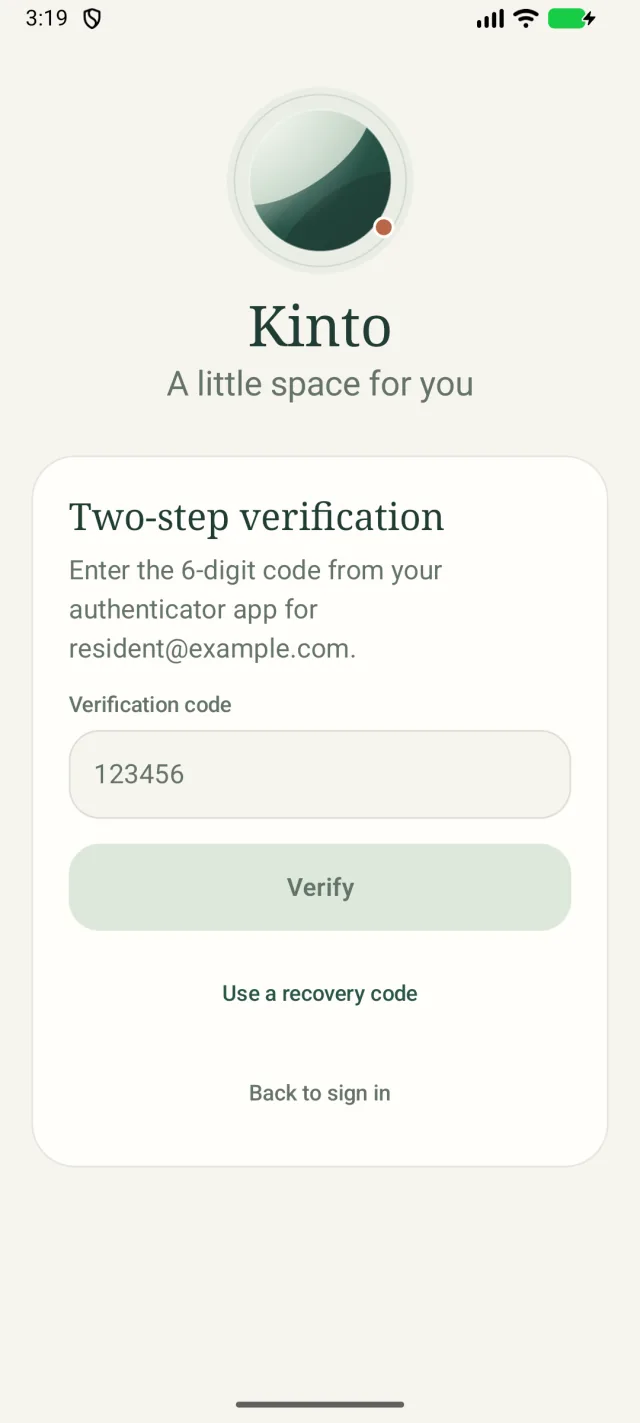
Most people won’t see this. If your account has two-step verification turned on (for example, because you also work in a care team and set it up on the Kinto website), you’ll see Two-step verification after your password.
- Open your authenticator app and find Kinto.
- Type the 6-digit code into Verification code and tap Verify.
- No phone to hand? Tap Use a recovery code and type one of the recovery codes you saved. Each code works once.
- Tap Back to sign in if you want to start again.
Forgotten your password?
- Type your email address in the Email box on the sign-in screen.
- Tap Forgot password?. You’ll see If an account exists for that email, reset instructions will be sent.
- Open the email from Kinto and tap the link within one hour. It opens a Kinto account page on the Kinto website where you choose a new password.
- Come back to the app and sign in with your new password.
5. Say hello
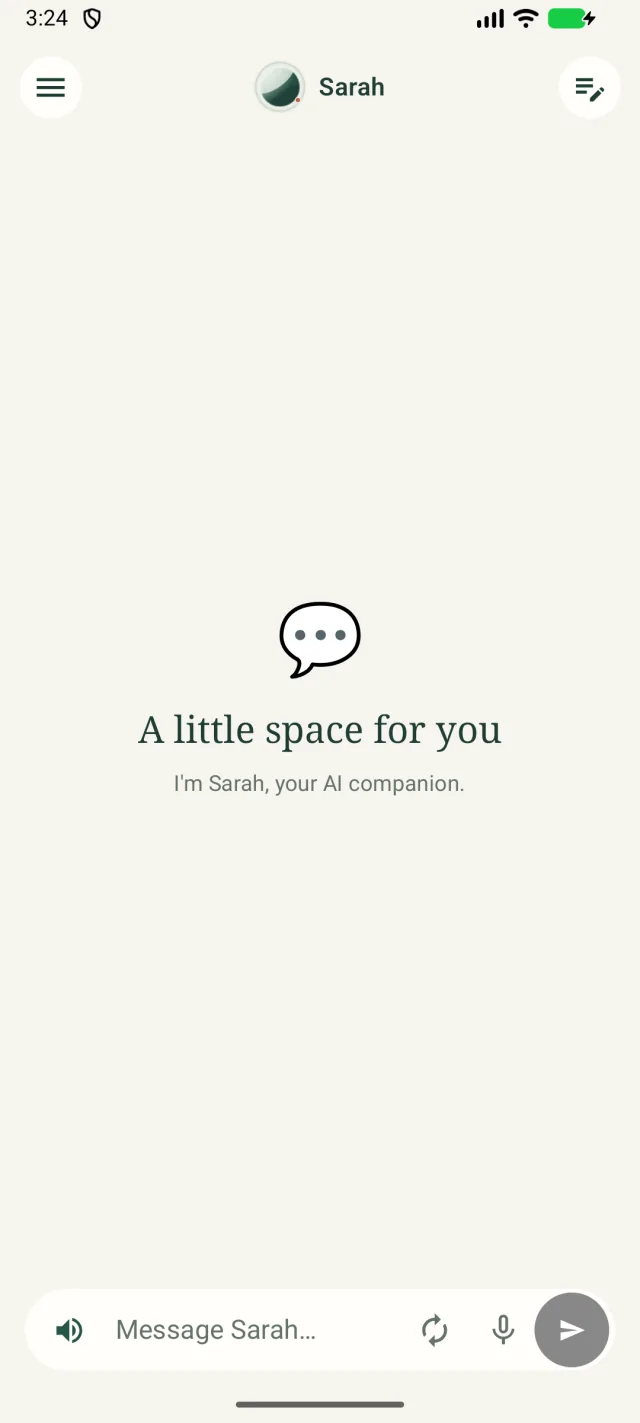
You’ll see Sarah’s chat screen with A little space for you. Tap Message Sarah… and type hello. See Chatting with Sarah.
Still stuck, or spotted something that doesn’t match what you see? Email support@kinto.you and tell us which page you were on. Please don’t include residents’ personal or medical details.